
Magic EraserMagic Eraser
FREERuns on your deviceRuns on your devicePaint over a sign, a cable or a stranger. Let go and it fills in with what should be behind it.Free vs Pro Same Tool, More Power.
| Feature | Free | Pro |
|---|---|---|
| Download size | 1024 px | Full resolution |
| Match grain and light | — | ✓ |
Erase Anything in Three Steps.
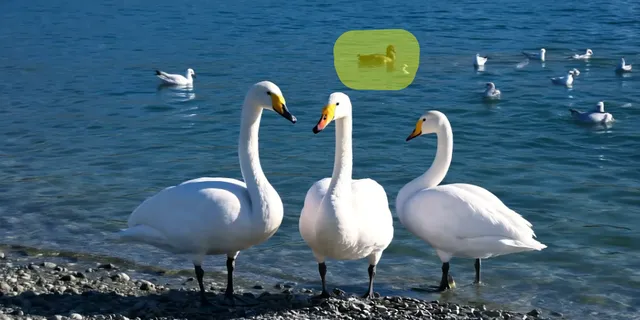

- Add a PhotoPNG, JPG or WebP, from your phone or computer.
- Brush over ItPaint over a person, object or text. Let go and it is filled in.
- DownloadHold to compare, then save the clean photo.
Related Tools
18 tools · scroll Video01Video CompressorShrink a video to fit Discord, WhatsApp or an email.
 Video02Trim, Cut & MergeCut the slow parts, join clips, rotate or flip.
 Video03Slow Motion & Speed RampSlow down the best moment, trim the rest, smooth the ramps.
 Video04Extract Audio or MuteSave a video's sound as MP3, or the video without it.
 Video05Frame GrabberSave the sharpest frame of a video as a still image.
 Subtitles06Video to TextGet a transcript of any video or audio, with timestamps.
 Music & audio07Text to SpeechTurn a script into a natural voiceover and save it as MP3.
 Music & audio08Slowed + ReverbMake slowed, reverb, sped up and nightcore versions of a song.
 Image09Remove Image BackgroundCut out a product or a person, ready for any design.
 Image10Image UpscalerMake small or blurry photos sharp, for free.
 Image11Image to PromptTurn any image into a prompt for AI images or video.
 Video12Video to PromptA prompt for every scene of a video, ready to remake.
 Video13AI Clip StitcherJoin AI clips with matched color and smooth cuts.
 Video14Seamless Loop MakerMake a clip loop forever without a visible jump.
 Video15Video Background RemoverCut a person out of a video, with a transparent background.
 Video16Color MatchGive every clip the same look, or save it as a LUT.
 Music & audio17Voice CleanerTake the noise and hum out of a voice recording.
 Image18Start Frame PrepFit a start frame to the exact size an AI video model wants.
Remove Objects from Photos, Free
Tourists in the background, a bin in the corner, a sign that ruins the shot. Brush over it and this free magic eraser fills the space so it looks like it was never there.
No sign-up needed, and your photo never leaves your device: the eraser runs in your browser.
Clean Product and Listing Photos
Remove price stickers, cables and clutter from product shots before you post them.
Use it on photos you took or have the rights to.
Clean Shots, No Retakes.
Travel Photos
Remove tourists, cars and signs from landmarks so the place is the star of the photo.
Homes and Spaces
Clear bins, cables and clutter so rooms and buildings look their best in listings and portfolios.
Portraits
Take out photobombers and distracting objects behind the person, and keep the moment.
Text and Stickers
Clear dates, captions and price stickers from photos you took or have the rights to.
Erase Without a Trace.
The fill looks most natural when the eraser has good surroundings to copy. Work with it, not against it.
- 01
Brush a Little Past the Edges
Cover the whole object plus a thin margin, including its shadow. Leftover edges and shadows are what give an edit away.
- 02
Erase Big Things in Steps
Remove a large object in two or three passes, a part at a time, so each fill has more real detail around it.
- 03
Simple Backgrounds Are Easiest
Sky, sand, grass and walls fill in cleanly. Busy patterns, text and faces behind the object are harder.
- 04
Fix Reflections Too
Objects often show up in windows, water and shiny floors. Brush over the reflection as well.
- 05
Compare Before You Save
Hold Compare to see the original. Zoom in where the object was and check for repeated patterns or soft spots.
Mistakes That Give the Edit Away.
Leaving the Shadow Behind
An erased person with their shadow still on the ground is the most common giveaway. Brush over the shadow too.
One Giant Stroke
Erasing a large area in one go leaves a soft, smeared patch. Work in smaller pieces, one part at a time.
Ignoring Repeated Patterns
On brick, tiles and leaves, the fill can repeat the same detail. Look closely and erase that spot again if it looks copied.
What to Erase, and How.
The most common jobs, the mode to use and the detail that makes it look right.
| Object | Mode | Tip |
|---|---|---|
| People in the background | Brush, or Lasso around them | Include their shadow |
| Text and signs | Brush, medium size | Check small print nearby |
| Wires and cables | Brush, small size | Follow the whole line |
| Stickers and labels | Brush | Erase the glue edge too |
| Cars and bins | Lasso | Large ones in two passes |
Erasing Objects, Answered.
How do I remove a person from a photo?
Add the photo and paint over the person with the brush, or draw around them with the lasso. Let go and the space is filled in to match the scene.
Will it look fake?
Small and medium objects usually disappear cleanly. Very large areas can look softer, so erase big things in two or three passes.
Can I remove text?
Yes. Brush over signs, captions, dates and stickers. A medium brush that covers each line works best.
Is my photo uploaded?
No. The eraser runs in your browser. The model is downloaded once (about 28 MB) and kept, and your photo never leaves your device.
What does Pro add to this tool?
Pro downloads in full resolution and matches the photo’s grain in the filled area. It also comes with monthly credits for Creatide’s AI video, image and music models.
Is it free?
Yes. No credits, no account and no daily limit. Free downloads are up to 1024 px on the long side.
Why does the fill look blurry?
The area was large or the surroundings were busy. Erase it again in smaller pieces, or turn on Pro’s Match grain and light, which adds the photo’s own grain to the fill.
Does it work on screenshots?
Yes. It can remove text, stickers and elements from screenshots and graphics, as long as the background behind them is simple.
Can I erase watermarks?
Only from images you own or have the rights to. Removing someone else’s watermark to use their photo isn’t allowed.
Will people notice the edit?
On simple backgrounds, usually not. On busy scenes, check the area closely and erase again in smaller pieces if anything looks soft.
 Start generating
The Next Shot IsJust a Prompt Away
Unlock premium AI creation, faster rendering, commercial rights and watermark-free exports whenever your next idea is ready.