
Video Background RemoverVideo Background Remover
FREERuns on your deviceRuns on your deviceThe person is found on every frame in your browser. Swap the background or export a clean green screen.Free vs Pro Same Tool, More Power.
| Feature | Free | Pro |
|---|---|---|
| Video length | Up to 30 s | Up to 10 min |
| Export | Up to 1080p (720p on phones) | Up to 4K (720p on phones) |
| PNG frames | — | ✓ ZIP of every frame |
| Watermark | None | None |
Remove a Video Background in Three Steps.
- Add a VideoDrop an MP4 or MOV with a person in it. It’s processed on your device.
- Pick a BackgroundGreen, blue, blur, a color, an image or transparent.
- ExportSave an MP4, a transparent WebM or a ZIP of PNG frames.
Related Tools
18 tools · scroll Video01Video CompressorShrink a video to fit Discord, WhatsApp or an email.
 Video02Trim, Cut & MergeCut the slow parts, join clips, rotate or flip.
 Video03Slow Motion & Speed RampSlow down the best moment, trim the rest, smooth the ramps.
 Video04Extract Audio or MuteSave a video's sound as MP3, or the video without it.
 Video05Frame GrabberSave the sharpest frame of a video as a still image.
 Subtitles06Video to TextGet a transcript of any video or audio, with timestamps.
 Music & audio07Text to SpeechTurn a script into a natural voiceover and save it as MP3.
 Music & audio08Slowed + ReverbMake slowed, reverb, sped up and nightcore versions of a song.
 Image09Remove Image BackgroundCut out a product or a person, ready for any design.
 Image10Image UpscalerMake small or blurry photos sharp, for free.
 Image11Magic EraserBrush over people, objects or text and they’re gone.
 Image12Image to PromptTurn any image into a prompt for AI images or video.
 Video13Video to PromptA prompt for every scene of a video, ready to remake.
 Video14AI Clip StitcherJoin AI clips with matched color and smooth cuts.
 Video15Seamless Loop MakerMake a clip loop forever without a visible jump.
 Video16Color MatchGive every clip the same look, or save it as a LUT.
 Music & audio17Voice CleanerTake the noise and hum out of a voice recording.
 Image18Start Frame PrepFit a start frame to the exact size an AI video model wants.
Remove the Background from Any Video, No Green Screen Needed
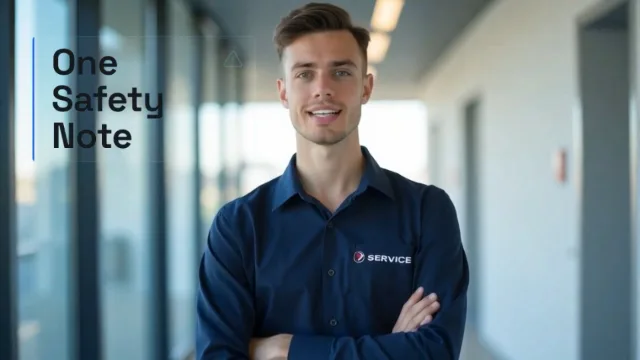
Video Background Remover finds the person in every frame and separates them from what’s behind. Replace the background with a color, a blur, an image or an AI-generated scene, or export a clean green screen for your editor.
It’s built for talking heads, UGC ads, reaction videos and product demos, the formats where a person speaks in front of the camera.
Your Video Stays on Your Device
The segmentation model runs in your browser. Frames are processed one after another and encoded with WebCodecs, so nothing is uploaded.
A clip takes roughly two to three times its own length on a recent laptop (a 30-second clip, about a minute to a minute and a half). Phones work for short clips, at 720p.
One Person, Any Background.
Talking Head over B-Roll
Put yourself in front of product shots or AI scenes, like a news presenter, without a studio.
New AI Backgrounds
Generate a background in Creatide, then place the cut-out person on top for a scene you could never shoot.
Clean Green Screen
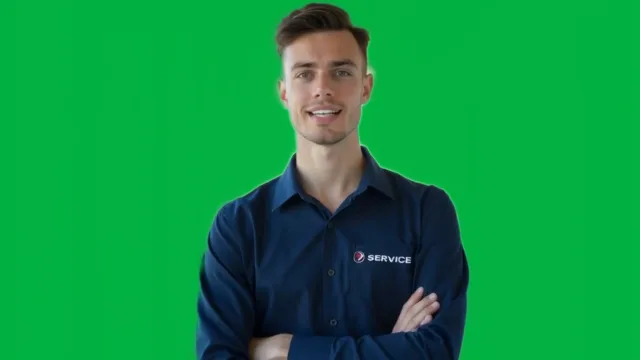
Export a solid green version and finish it in Premiere, CapCut, Final Cut or Resolve with their keyer.
Transparent Overlays
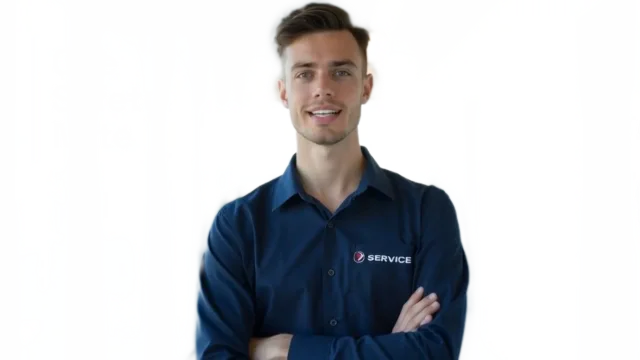
WebM with transparency drops straight onto websites and into editors that support alpha.
Blur a Messy Room
Keep the person sharp and blur everything behind them, like portrait mode for video.
Reaction Videos
Cut yourself out and sit on top of the video you’re reacting to.
Pick the Format Your Editor Reads.
Not every app understands transparent video. Here’s which export to use where.
| Format | Opens in | Good for |
|---|---|---|
| MP4 · green screen | Every editor | Key it out in your editor; smallest file |
| WebM with alpha | Websites, Chrome, CapCut, DaVinci Resolve | Real transparency, no keying needed |
| PNG frames · ZIP | After Effects, Blender, any compositor | Highest quality, large files |
| MP4 · new background | Posting straight away | Background already replaced |
Shoot for a Clean Cut-Out.
The model does the work, but how you shoot decides how good it looks.
- 01
Light the Person, Not the Wall
A clear difference between the person and the background gives the cleanest edge, even without a green screen.
- 02
Avoid Colors That Match the Wall
A beige shirt against a beige wall confuses any model. Contrast helps more than resolution.
- 03
Keep the Whole Person in Frame
Hands and hair that leave and re-enter the frame are the hardest part. A steady, medium shot works best.
- 04
Match the Light of the New Background
If the new background is warm sunset, pick footage lit warm, or use Color Match afterwards.
What Happens on Your Device.
The whole process runs in your browser, frame by frame, so nothing is uploaded.
- 01
Find the Person
A segmentation model looks at each frame and marks every pixel that belongs to a person.
- 02
Smooth over Time
Edges are compared with the frames before and after, so the outline doesn’t flicker.
- 03
Refine the Edge
Hair and soft edges get a thin blended border instead of a hard cut, set by Edge softness.
Video Backgrounds, Answered.
How do I remove the background from a video without a green screen?
Add the video and choose a new background. The tool finds the person on every frame and replaces everything else, no green screen needed.
Is my video uploaded?
No. The model runs in your browser, and the video never leaves your device.
Can I get a transparent video?
Yes. Export WebM with alpha for websites and editors that support it, or PNG frames (Pro) for any compositor. iPhone and Safari don’t play transparent WebM.
Does it work with pets or products?
The tool is tuned for people. For a product or a pet in a photo, use Remove Image Background.
Why do the edges flicker?
Fast movement and colors close to the background are hard. Keep Steady the edges on and raise Edge softness a little.
How long can the video be?
Up to 30 seconds on the free plan, up to 10 minutes on Pro.
Will hair look natural?
With Keep hair detail on, edges are refined around hair and soft shapes. Very fine flyaway hair against a busy background may still blur slightly.
Can I put myself on an AI-generated background?
Yes. Generate the scene in Creatide, choose Image as the background here and pick it. Match the light with Color Match for a more natural result.
Is there a watermark?
No. Free exports have no watermark.
Can I keep the original sound?
Yes. The sound of your video is copied into the export unchanged, whichever background you choose. PNG frames are pictures only, so they have no sound.
Does it work on a phone?
Yes, on recent iPhones and Android phones, for short clips. Phones export at up to 720p to keep it quick.
Can I use it for UGC ads?
Yes. Cut out the creator, put them over product shots or an AI scene from Creatide, and add captions. It’s the fastest way to make a talking-head ad look produced.
What happens to my video after I close the page?
Nothing is stored. The video only ever existed in your browser’s memory, and it’s gone when you close the tab.
 Start generating
The Next Shot IsJust a Prompt Away
Unlock premium AI creation, faster rendering, commercial rights and watermark-free exports whenever your next idea is ready.