●16 min read
AI Video Static Camera: Stop unwanted zooms and pans
You asked for a locked-off shot. The model still zooms, pans, or drifts.
That is rarely one bad phrase. It is a control conflict between still intent and motion defaults.
Use a model-agnostic workflow to hold the frame for products, talking heads, and loops.
You asked for a locked-off shot.
The model still zooms, pans, or soft-drifts through the frame.
Brand-safe product clips, talking heads, and seamless loops fall apart when that frame will not stay put.
The real cost is not the first bad take.
It is the chain reaction of wasted rerolls, unstable framing, and a cut that never feels intentional.
The catch:
This is rarely a missing magic phrase.
An AI video static camera fails when still intent collides with motion-biased defaults and overloaded scene language.
The better move:
Treat stillness as a control conflict you can diagnose and fix.
By the end, locked-off work should feel less like a prompt lottery and more like a workflow decision.
Stillness becomes prompts, subject-only motion, control checks, framing anchors, one-variable tests, and last-mile stabilization.
That starts with why the camera moves when you told it not to.
Why Locked-Off Intent Still Gets Camera Motion
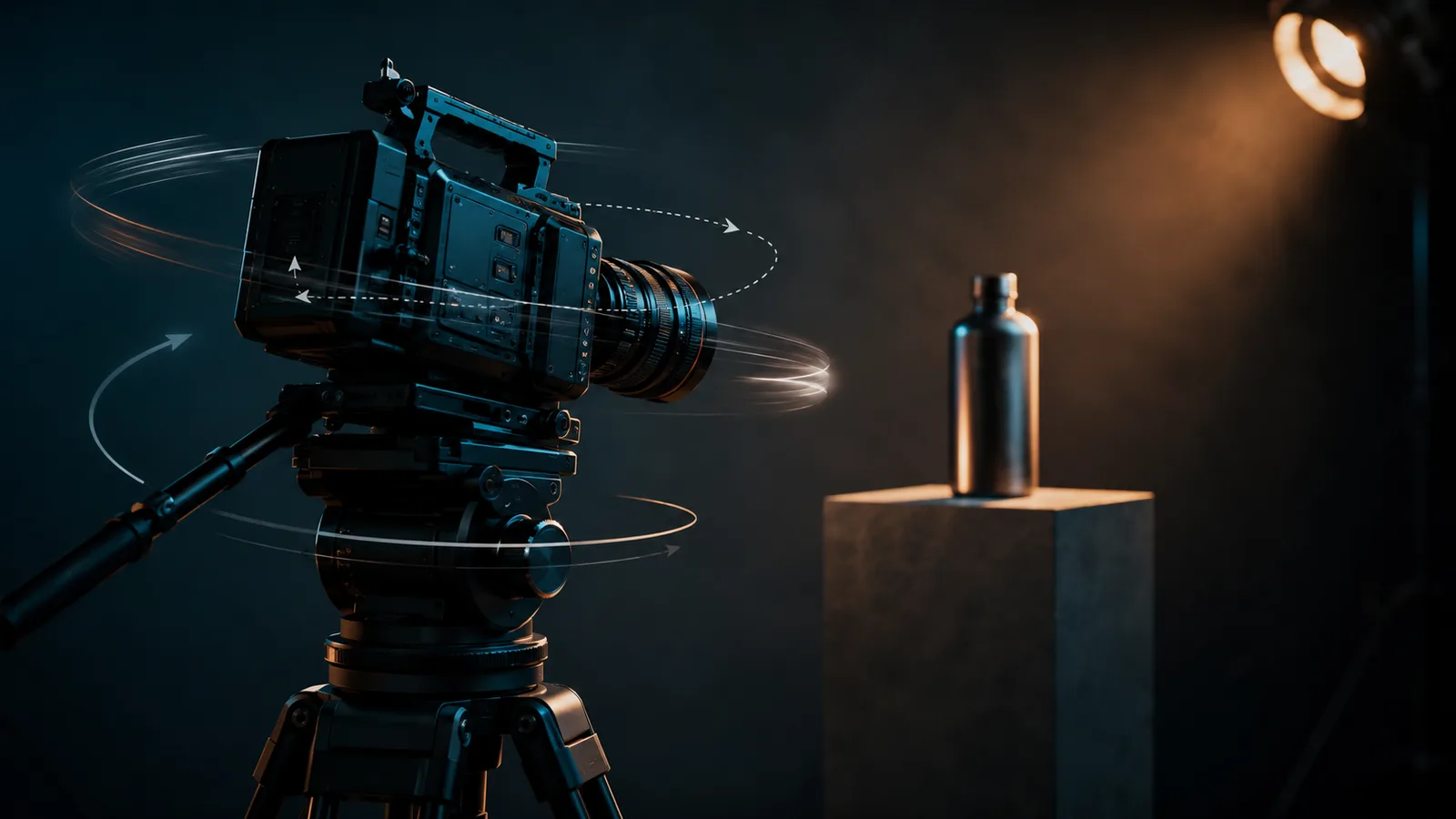
AI video systems often inject zooms, pans, or dolly drift into locked-off requests because generation favors immersive motion and ambiguous prompts leave room for camera path invention. Still intent collides with multi-motion scene language. The failure is a control conflict, not one missing magic phrase.
You can name the shot locked-off and still watch the frame creep.
Many video models optimize for immersive, high-fidelity motion.
Stillness is possible, but it is not the path of least resistance.
Ambiguous language makes it worse.
If the prompt never pins the camera, the system can invent a soft zoom, slow pan, or gentle dolly push.
Multi-motion scene language adds another conflict.
When one line demands stillness and another packs travel, reveal, and subject action, the model has competing instructions.
Wide establishing frames are often harder for static camera AI video because large environments invite camera path planning.
That does not mean every model fails the same way.
It means still intent needs active control, not a lucky phrase.
Treat unwanted zoom, pan, and dolly drift as symptoms of that conflict.
Diagnose AI Video Camera Drift Before You Reroll
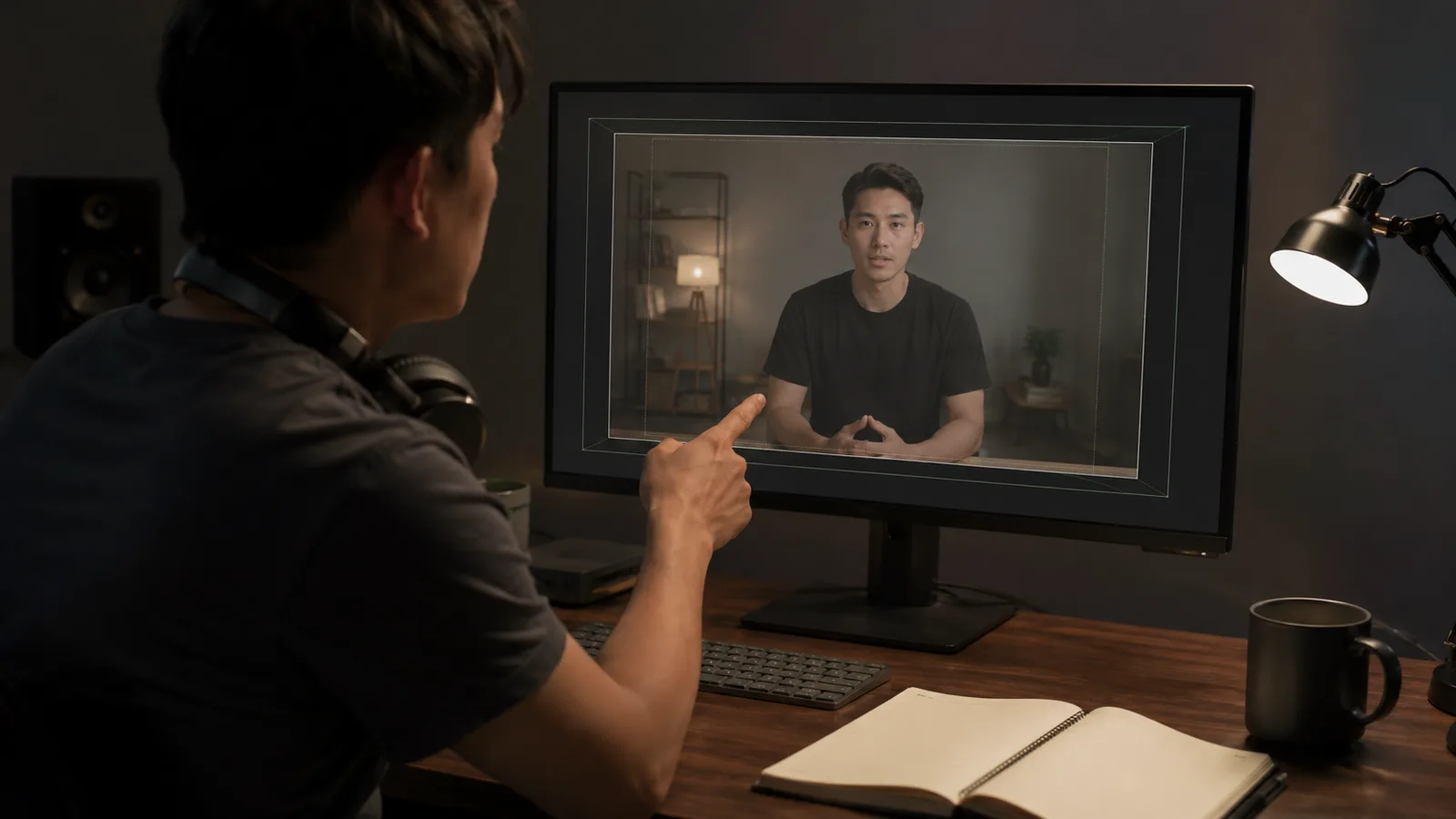
Name the failure before you rewrite the prompt. AI video camera drift covers unwanted zoom, pan or tilt creep, dolly push-in, roll, and background warp that reads as movement. Mislabeling the mode wastes rerolls because each failure points to a different next fix.
A bad take is not one generic glitch.
It is a specific frame path you can label on the first review pass.
If you treat every drift the same, you rewrite the whole prompt and still miss the control issue.
That means: watch once for camera path only.
Ignore style, lighting, and subject quality on that pass.
Ask whether the frame magnified, rotated, traveled, twisted, or melted at the edges.
That label decides the next fix, not another full rewrite.
Unwanted Zoom and Slow Push-In Signals
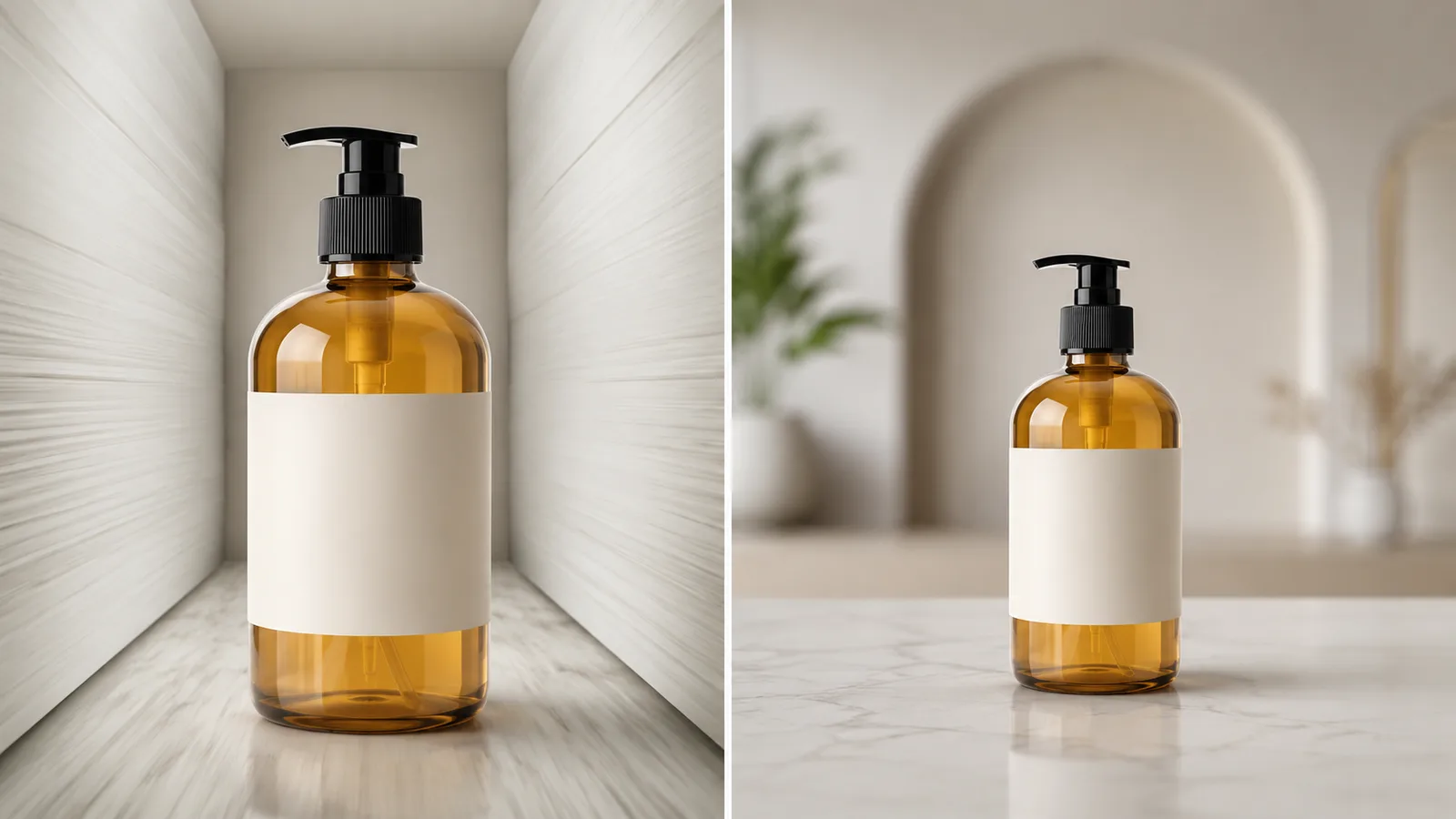
AI video unwanted zoom shows up as progressive magnification or framing that tightens over time.
Crash or punch zooms snap into a face or detail.
Slow push-ins make the subject grow while the frame collapses inward.
Use subject scale and background edges to separate lens-style compression from true body travel.
Subject grows while side walls stay roughly parallel: leans zoom-like
Depth relationships shift as space appears to move through: leans dolly or push
Framing snaps tight in under a beat: crash or punch zoom
Pan, Tilt, and Dolly Drift Cues
Pan drift slides the world left or right with rotational travel on a fixed axis.
Tilt does the same on the vertical axis.
Dolly drift pushes or pulls through space and changes depth, not only magnification.
Micro-drift still matters.
Even a soft slide can break a seamless loop when start and end frames no longer match.
Background Warp That Mimics Movement
Sometimes the subject stays centered while the world melts, stretches, or slides as a sheet.
That still counts as camera drift because the frame path feels unstable.
Over-described pans often produce that stretch when motion outruns stable edge geometry.
If edge geometry melts or the scene slides as one sheet, treat it as motion-path overload, not only a style flaw.
Label that failure before you touch the prompt again.
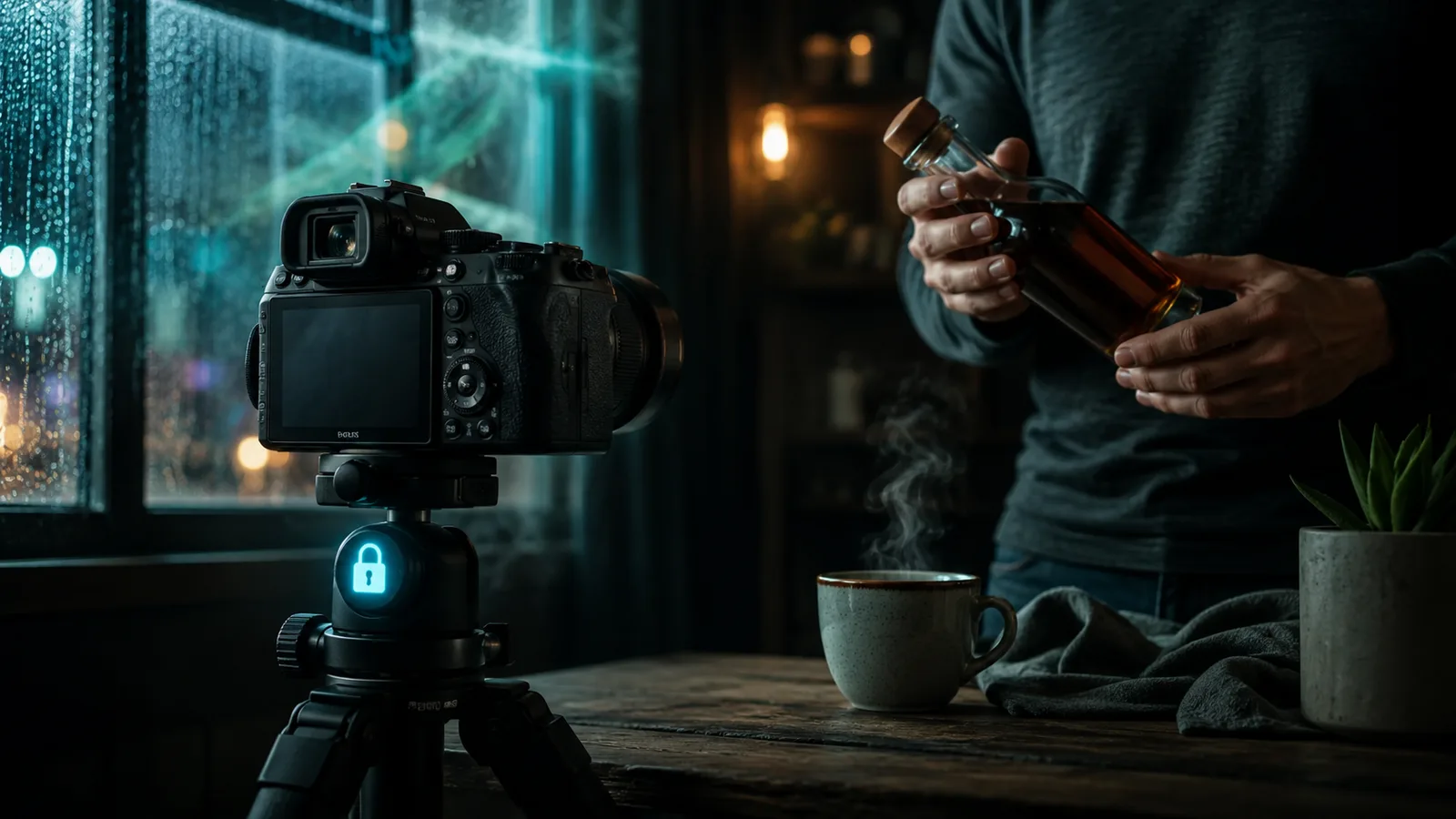
Prompt Patterns for an AI Video Static Camera
Reliable AI video static camera prompts pin the camera as motionless, lock the frame with one still instruction, and move energy into subject or environment action. Explicit natural-language stillness beats vague locked-off labels. Stacked pan, zoom, and tilt language reopens drift.
Stillness fails when the prompt only hints at a locked frame.
Models built for immersive motion will invent a path unless you pin the camera in plain language.
The practical result: write a three-part shape for static camera AI video.
One still-camera sentence. One subject or environment motion clause. Zero extra camera verbs.
That is prompt structure, not a universal magic line that works on every model and every shot.
Motionless Camera Language That Holds the Frame
A bare static label is often too thin to hold the frame.
Natural-language reinforcement tells the model the camera stays put for the full clip.
Use short reusable skeletons:
The camera is entirely motionless for the duration of the scene, with movement only from the subject.
Locked fixed position with no intentional camera movement.
Tripod-locked framing that never pans, tilts, zooms, or travels.
Surveillance-style locked framing can help when you want a rigid, slightly off-axis mount feel.
Keep the language concrete. Soft hedges like mostly still leave room for drift.
Describe Subject and Environment Motion Instead
A still lens can still feel alive if the scene owns the motion.
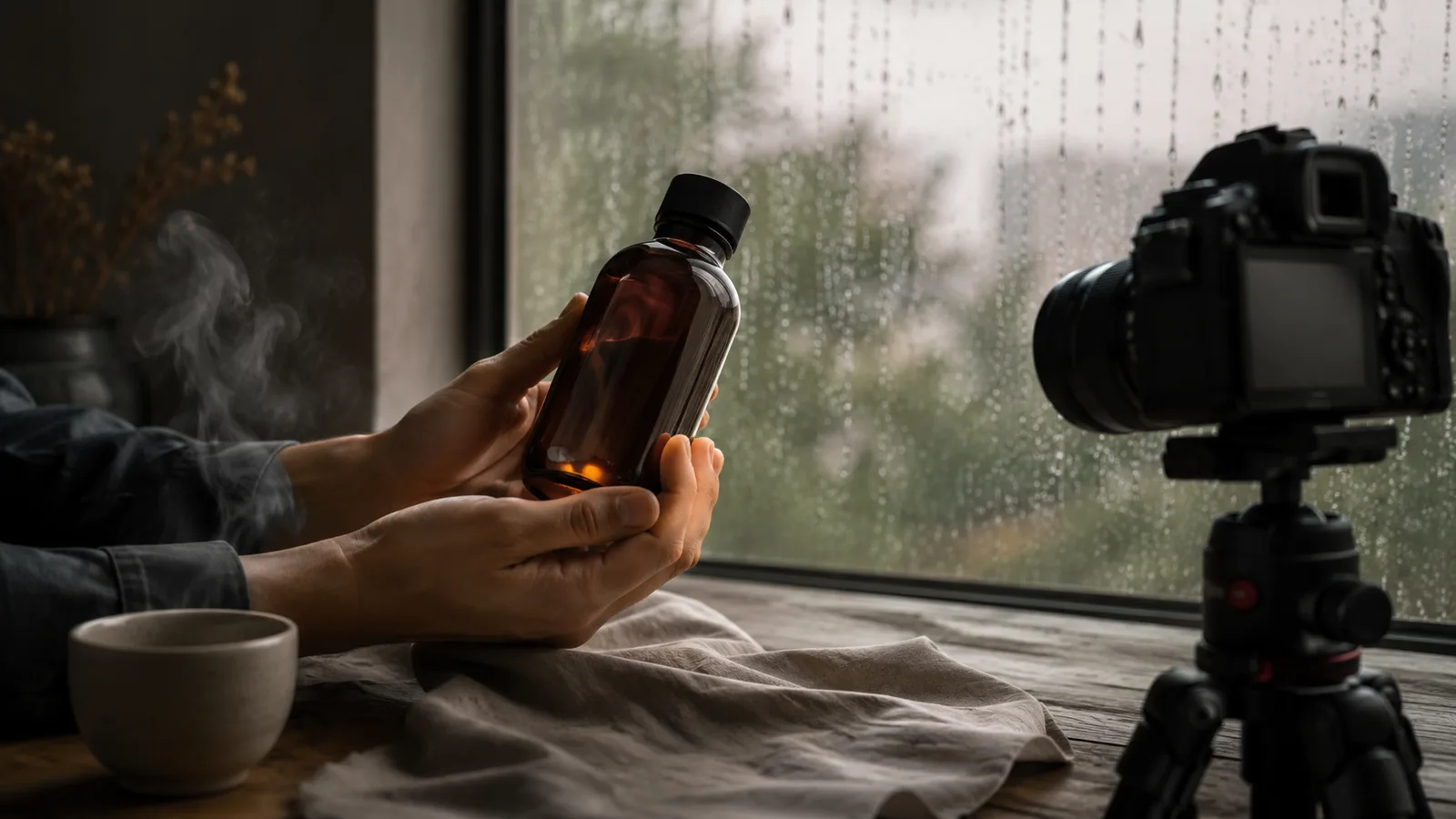
Follow a subject-only motion rule: people, products, weather, fabric, and light move while the camera does not.
Bad: cinematic reveal as the camera pushes in on the bottle.
Good: static shot, hands rotate the bottle, steam rises, rain streaks the glass.
Describe entrances and exits through the frame instead of asking the camera to travel to them.
That keeps energy high without reopening zoom or pan paths.
One Primary Camera Instruction Per Clip
Do not stack static with pan, zoom, tilt, or dolly in one prompt.
Conflict loading starts when one line locks the frame and another smuggles travel.
Overpacked camera verbs can also push the whole scene into global slide or edge warp.
Prefer still camera plus subject and environment motion only.
If you need a pan later, generate that as a separate clip with its own primary camera instruction.
Fixed Camera AI Video: Move the Subject, Not the Lens
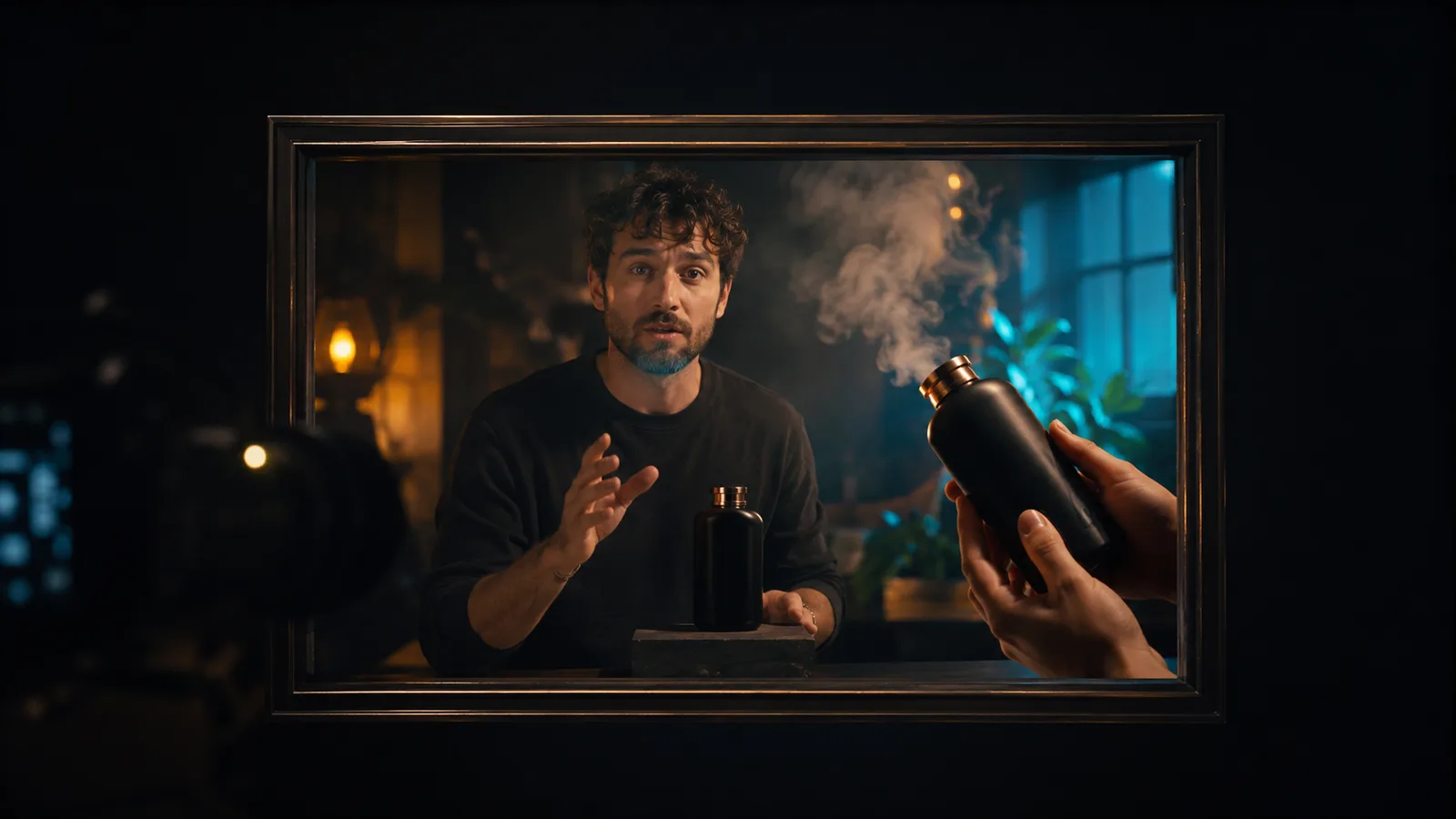
Fixed camera AI video keeps the lens locked while energy comes from the subject and environment. Talking-head micro-motion, product hand handling, and loop-safe ambient action keep the clip alive without zoom, pan, or dolly language. The frame stays still. The scene does the work.
A locked frame can still feel dead if nothing inside it moves.
That creates a production trap.
Creators feel the stillness, then smuggle camera travel back into the shot to “add energy.”
The better move is motion allocation.
Keep the lens fixed and assign life to people, product handling, and environment detail.
Talking-head clips stay readable when the face holds position and expression carries the beat.
A blink, a small head turn, a hand gesture, or a shoulder shift can supply energy without tightening the frame.
Camera travel usually hurts facial focus more than it helps presence.
Product demos work the same way.
Hands open a box, rotate a bottle, place a device on a desk, or lift a label into view.
The product’s scale stays stable because the lens is not drifting, pushing, or zooming.
Loop-safe ambient motion keeps brand clips breathing while the border stays put.
Steam rising, rain on glass, fabric ripple, soft wind, or light flicker can animate a locked frame without inventing a camera path.
The practical result: still camera, living scene.
If the cut feels flat, increase subject or environment action first.
Do not reintroduce pan, zoom, or dolly language to fix boredom.
| Shot job | What should move | What should not move |
|---|---|---|
| Talking head | Face micro-expression, gesture | Lens travel and framing creep |
| Product demo | Hands, product handling, label reveal | Zoom, push-in, soft dolly |
| Loop / ambient clip | Steam, rain, fabric, light, wind | Border drift or pan path |
Fixed camera AI video is not a freeze-frame aesthetic.
It is a deliberate choice to protect framing while the scene performs inside a stable window.
AI Video Camera Control Settings That Support Stillness
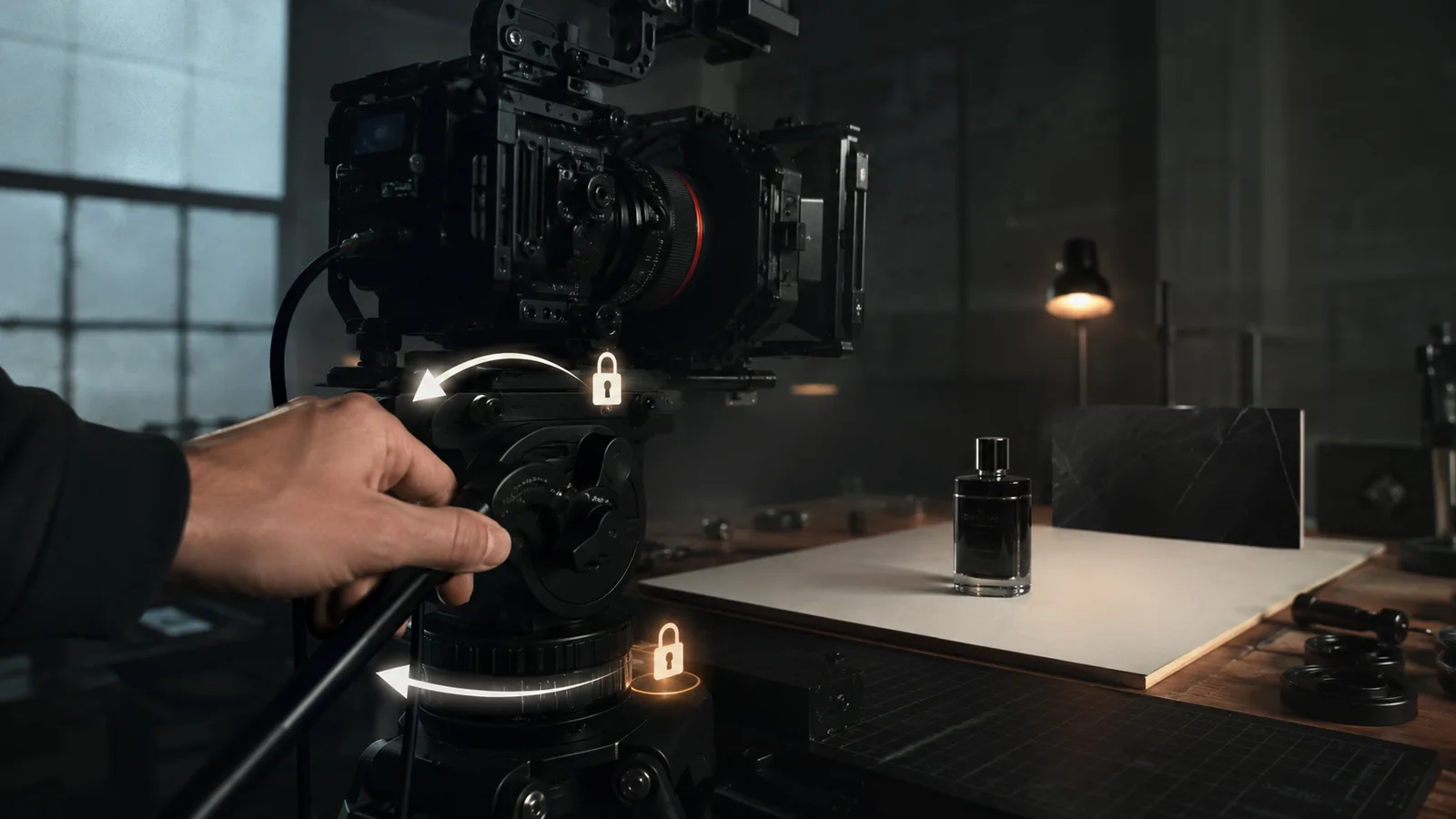
When you need stillness, AI video camera control starts outside the prompt. Check whether a movement preset, master multi-move shot, or cinematic path is active, prefer still or no-move when available, then lock a strong first-frame or image-to-video anchor so composition holds before generation begins.
A clean still prompt can still fail if the tool is already planning a camera path.
That is a constraint problem, not another wording pass.
Some platforms expose dedicated movement controls and combined multi-move shots.
When one of those is active, it can drive trajectory while your text asks for a locked frame.
Look: run controls and reference framing as preflight, then generate.
Turn Off Movement Presets That Override Still Intent
Built-in move modes can override locked-off language without a fight in the prompt box.
Scan for cinematic presets, basic move selectors, master multi-move shots, and leftover paths from the last take.
Prefer still, static, or no-move when the tool offers it.
Watch this Ai Lockup walkthrough for the static camera preset in action.
Compare that locked frame with the orbit rerun that follows.
If no still option appears, leave movement controls neutral and skip stacked multi-move modes.
Active pan, tilt, zoom, or roll selection
Combined master shots that mix travel plus zoom
One-click cinematic motion or pace presets left on
Auto path settings that survive between generations
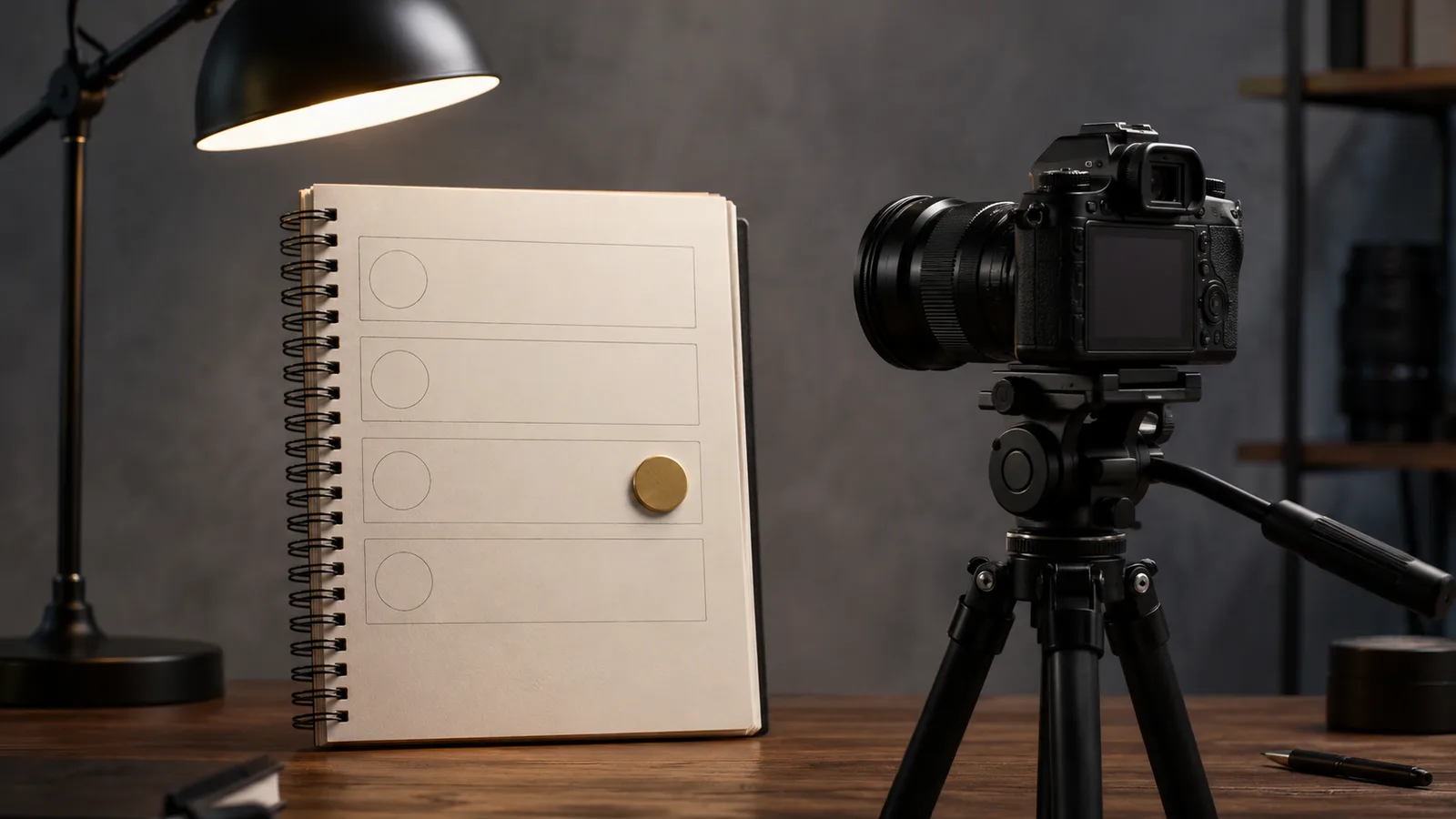
Reference Framing and Image Anchors
A strong still start image gives the model a fixed composition to animate from.
Use image-to-video when product scale, face position, or border placement must hold.
Keep the first frame clean: subject size locked, edges stable, and no crop that implies a push-in.
Reusing the same master reference for the same subject reduces framing drift across takes.
That is not a guarantee of perfect stillness.
It does remove a common source of soft push and border creep before more rerolls.
How to Stop AI Video Camera Movement With One-Variable Tests
To stop AI video camera movement, change one variable per reroll, keep one primary camera instruction, and test in a fixed order: controls, still-camera language, scene motion detail, then framing. Log what held still. Small reroll budgets and reusable templates beat full rewrites.
Rewriting the whole prompt every take hides the real fix.
You cannot tell whether stillness came from controls, language, or scene motion.
That means: isolate one change per generation.
Use this test order as workflow logic, not a universal vendor checklist.
Confirm movement presets and multi-move paths are off.
Tighten still-camera language only after controls support stillness.
Adjust subject or environment motion detail next.
Change framing or reference anchors last.
Keep one primary camera instruction on every take.
Stacking static with pan, zoom, or tilt language reopens control conflict.
A short reroll budget is normal production work.
Some camera-control guidance budgets about 2-3 generation attempts when background geometry is unstable.
Treat that as discipline, not a promised locked frame.
Write shot-list notes for what held still: control state, still sentence, motion owner, framing input.
Winning combinations become a template library for the next product, talking-head, or loop clip.
Locked-Off Shots for Products, Talking Heads, and Loops
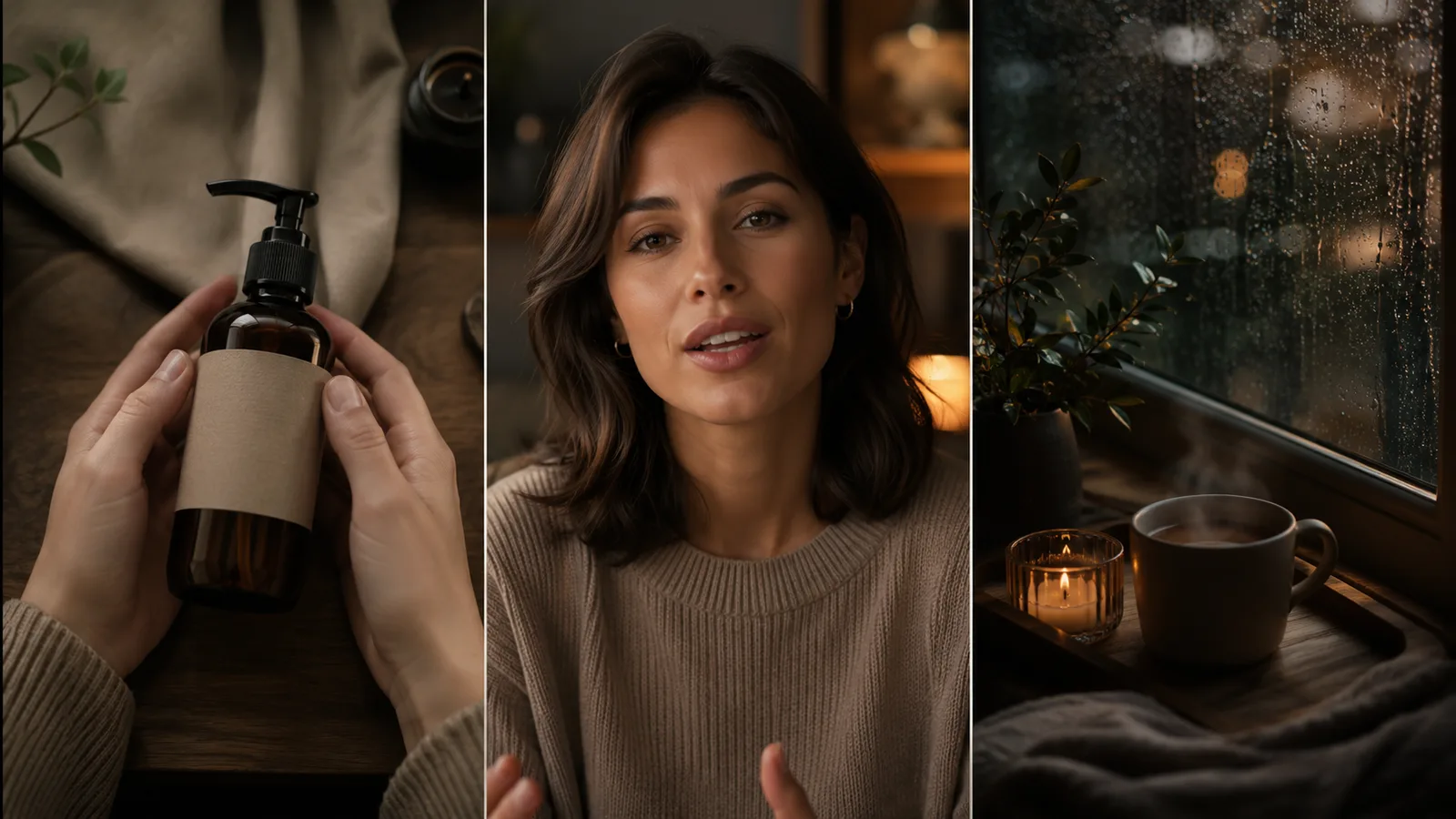
Locked-off shot AI clips succeed when stillness rules match the format: product demos need stable scale and label readability, talking heads need facial focus with micro-motion only, and loops need fixed borders with ambient in-scene life. Keep the camera still and put energy into the subject or environment.
The same locked frame fails differently by format.
Map each use case to one non-negotiable check before you ship.
Product demos fail when scale or labels drift across the clip.
If the bottle or device changes size mid-take, the demo is unusable for brand-safe cuts even when the subject stays centered.
Talking-head scenes fail when facial readability softens.
Any slow push, pan, or tilt that reframes the face mid-sentence breaks interview-style stillness.
Loops fail on residual micro-drift at the borders.
Ambient life can keep the clip breathing, but camera path changes usually break seamless edges even when the move looks small.
| Use case | Stillness risk | Motion allowed in scene |
|---|---|---|
| Product demo | Scale and label drift | Hands and object handling |
| Talking head | Face readability loss | Expression and small gestures |
| Seamless loop | Border break from micro-drift | Ambient environment motion |
The practical result: one still-camera intent, three different pass or fail rules.
Hard Limits and When Stabilization Is the Practical Fix
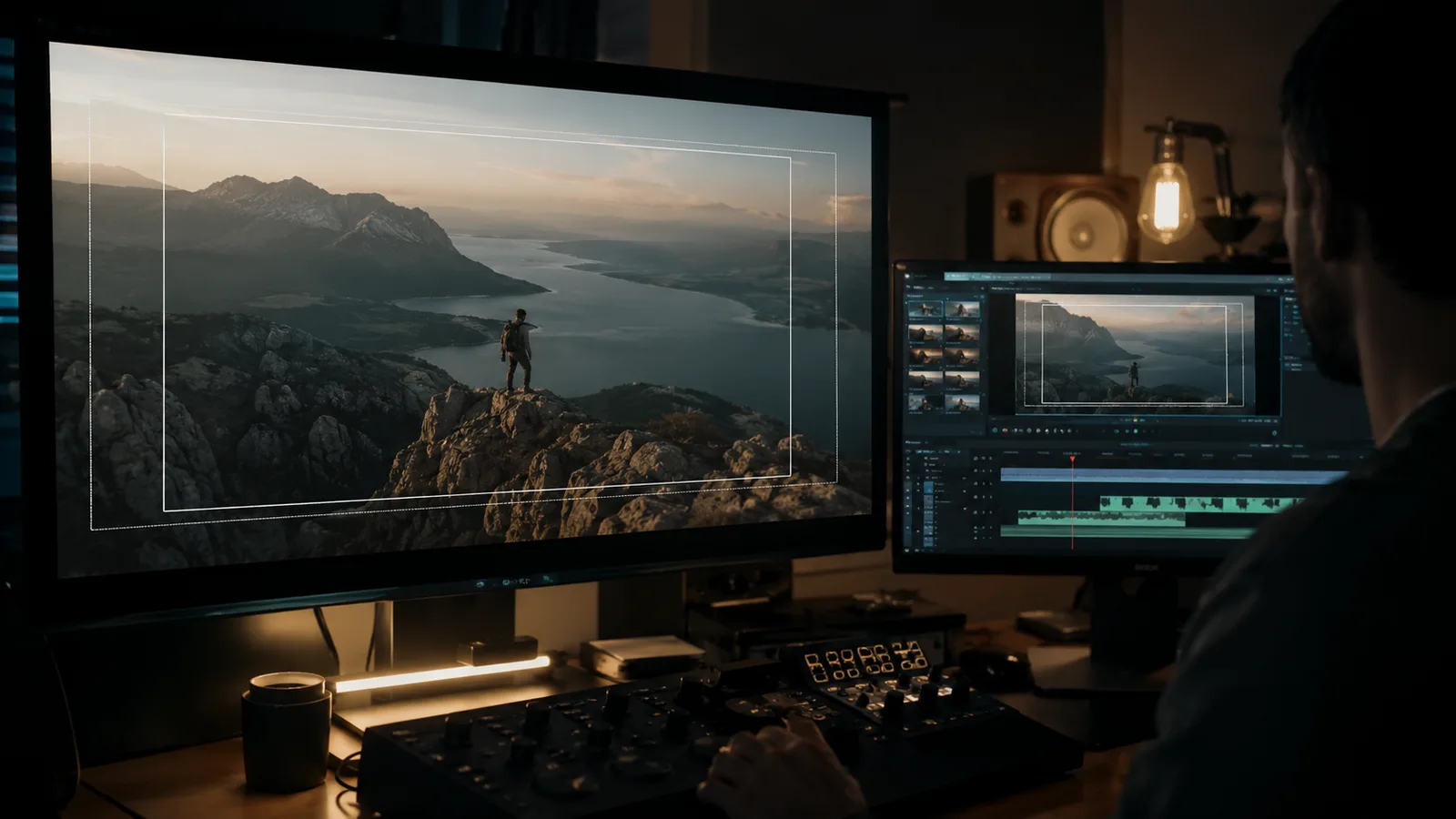
True locked-off AI video still has hard limits: wide establishing shots, multi-motion prompts, and cinematic motion defaults often resist stillness. When prompt and control work leave only subtle residual drift, local editor stabilization is the practical last-mile fix, not a cure for heavy warp.
Even a clean still workflow will not hold every frame type.
Video models are built for immersive motion, so locked-off intent competes with path planning by design.
The practical result: treat remaining drift as a production decision, not proof the process failed.
Wide Shots and Multi-Motion Prompts That Break Stillness
Wide and establishing landscapes are the hardest cases for a motionless camera.
Large empty frame areas give the model more room to invent travel, stretch, or soft push.
Multi-move stacks make control conflict worse.
Static language plus pan, zoom, or tilt instructions in one prompt asks for two camera plans at once.
The better move: simplify the shot instead of forcing impossible stillness.
Tighten framing before another full rewrite.
Drop stacked camera verbs from the clip brief.
Keep energy in subject or environment motion only.
Local Stabilization for Near-Miss Static Clips
Use local editor stabilization only after prompt and control work still leave residual micro-motion.
It helps when the subject holds and the unwanted move is subtle.
It fails when edges warp hard or perspective swings across the take.
Do not expect perfect recovery on every clip.
Ship the cleanest generation you can, then stabilize only near-miss drift on an otherwise usable AI video static camera take.
Frequently Asked Questions
Is image-to-video better than text-to-video for an AI video static camera?
Image-to-video usually helps more when product scale, face position, or loop borders must hold, because a still first frame anchors composition before motion starts. Text-to-video can still work with strong motionless-camera language and neutral controls, but it has more freedom to invent framing.
Does writing “static shot” alone stop AI video unwanted zoom and pan?
Often no. A bare static label is easy for motion-biased systems to under-weight, so pin the camera as entirely motionless for the full clip, assign motion only to subject or environment, and drop extra camera verbs.
Should I use negative lines like “no pan, no zoom, no dolly”?
Negative bans can help as reinforcement after one clear positive still-camera sentence. Alone, a banned-move list may still leave path planning open, so prefer one primary motionless instruction plus subject-only motion.
Can ambient motion like rain, steam, or fabric cause AI video camera drift?
Yes, if environment life is written with travel, reveal, sweep, or follow language that sounds like camera path planning. Keep ambient action local: steam rises, rain streaks on glass, fabric ripples, without pan, push, or reveal verbs.
Do all tools offer a still or no-move option for AI video camera control?
No. Some platforms expose movement selectors, master multi-move shots, or cinematic presets; others rely mostly on prompt language and reference frames. If a still, static, or no-move option exists, use it; if not, leave movement controls neutral and lock framing with a strong still start image when possible.
Should I generate one long locked-off clip or several short still takes?
For longer sequences, several short locked-off takes are usually safer to assemble than one long generation that invents soft travel mid-clip. Keep the same still-camera intent, reference framing, and motion owner across takes, then cut in an editor.
When should I stabilize a near-miss instead of rerolling to stop AI video camera movement?
Stabilize only after controls and prompt work still leave subtle residual micro-motion on an otherwise usable take. If borders melt, perspective swings, or the lens path clearly changes, reroll or reframe instead.