●16 min read
How to Control Camera Movement in AI Video
Most AI clips fail for one reason: the camera moves without a plan.
Direction, speed, framing, and subject tracking get mixed into one vague prompt, so the model invents motion you never asked for.
This guide shows how to write cleaner AI video camera prompts that keep cinematic movement intentional and stable.
AI camera motion often fails quietly.
You write a detailed scene prompt.
The model still invents speed, direction, and framing on its own.
That is when shots race, drift off subject, or compete with in-scene action.
The real cost is the chain reaction: extra re-rolls, unstable framing, and clips that never feel intentional.
The catch:
Composition-only prompts leave the camera guessing.
You can control camera movement in AI video with a cleaner, model-agnostic method.
Separate camera instructions from subject action, then keep one clear camera move per clip.
By the end, direction, speed, framing, tracking, and start/end composition should feel like deliberate production choices. That applies across text prompts and image-to-video workflows without treating any one tool as universal.
The better move starts with plain cinematic language, tight constraints, and honest limits.
Why AI Camera Motion Feels Chaotic or Lifeless
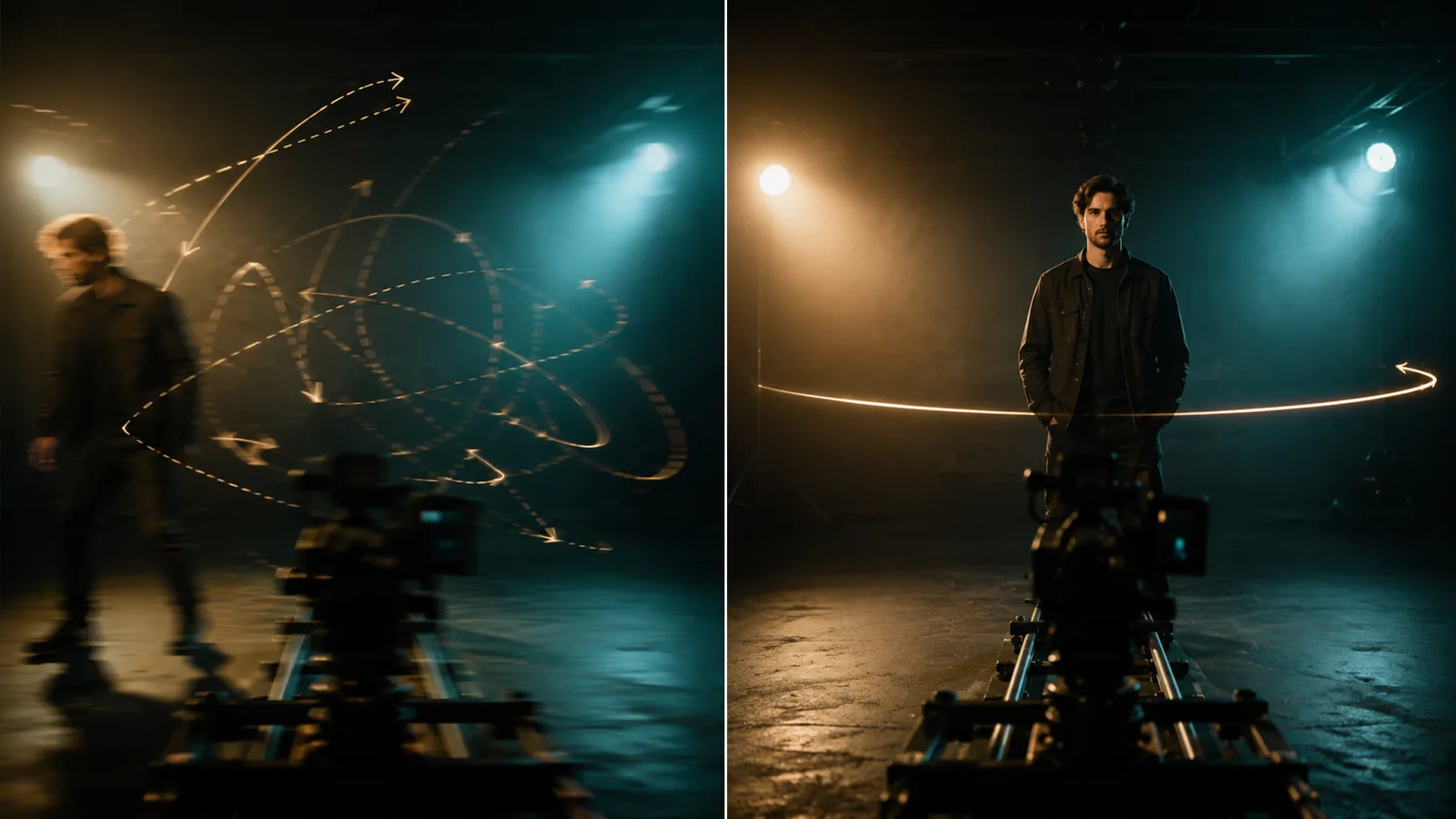
Uncontrolled AI camera motion usually comes from vague prompts that describe the scene but not the camera. Without clear direction, speed, and intent, the model invents motion on its own. That produces accidental movement instead of intentional, cinematic framing.
Most creators specify subject, setting, and lighting with care.
The camera often gets a mood word, or nothing at all.
Composition-only prompts leave a hard gap. The model still has to invent how the frame moves through time, so motion turns accidental instead of planned.
That shows up in four pain patterns that break cinematic readability.
Too-fast motion.Without a speed cue, pacing often lands on a default medium that feels rushed or forgettable. The viewer cannot settle into the shot.
Subject drift.Framing floats or slides off the hero. Cinematic intent collapses because the eye no longer knows what to watch.
Unexpected direction changes.A pan that flips, a push that wanders, or a reverse without setup makes the move feel random mid-clip.
Camera competing with scene action.Heavy subject motion plus an uncontrolled camera path splits model attention. Neither the action nor the frame reads cleanly.
The opposite failure is a locked, slideshow-like camera. Underspecified motion can freeze into lifeless stillness or lurch into chaos.
The practical result: purposeful motion assigns the camera a clear job. Accidental motion is the residual of blank direction, speed, and framing intent.
If you want to control camera movement in AI video, treat these failures as prompt gaps, not random tool bugs.
Separate Camera Movement From Subject Action
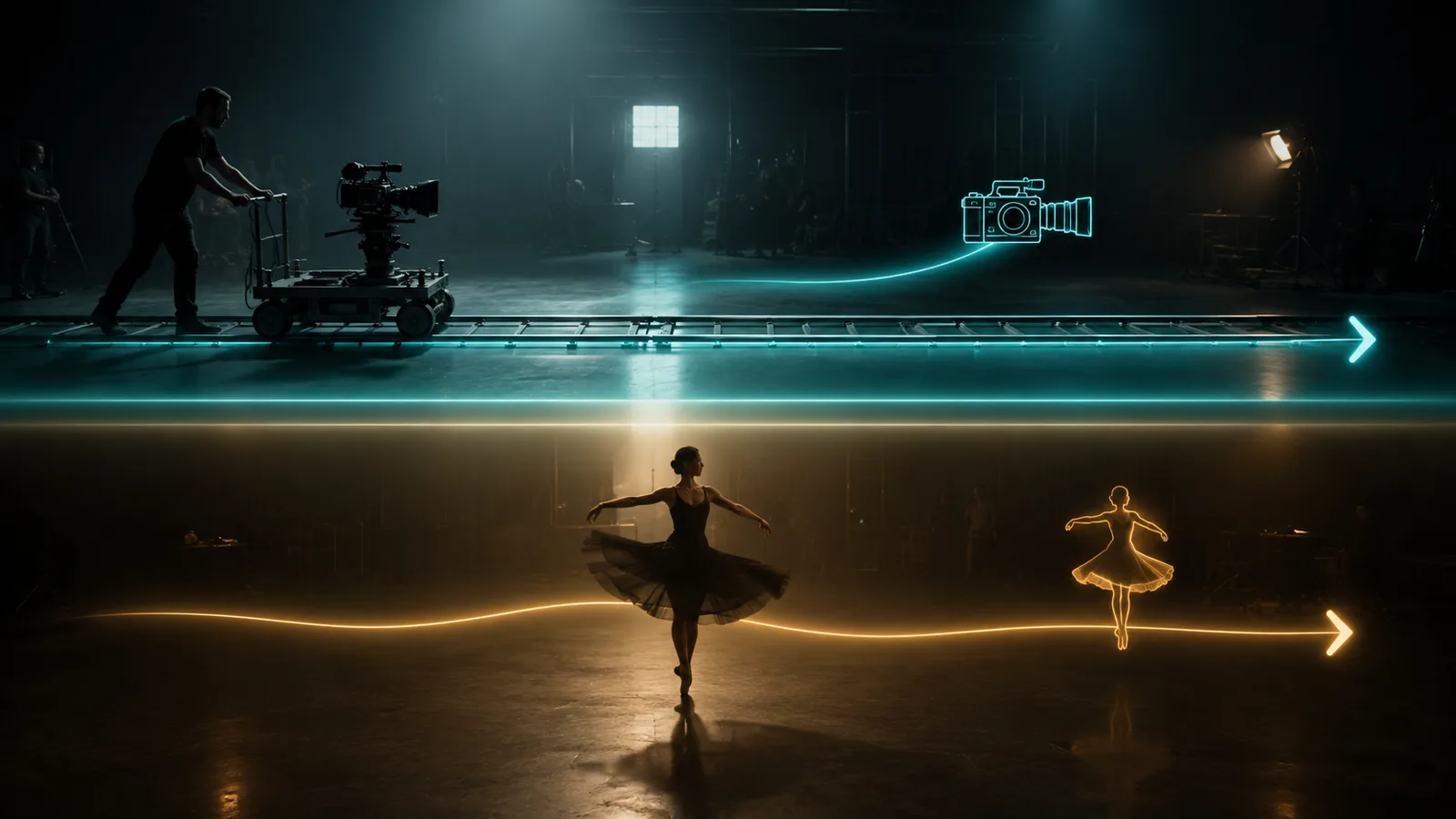
To control camera movement in AI video with more stability, write camera motion as its own instruction and keep subject or scene action separate. Then limit each clip to one clear camera action so the model is not forced to guess which motion matters most.
Mixed AI video camera prompts force the model to guess priorities.
Camera direction and subject action compete inside one block.
That is when frames drift or reverse without intent.
Split the jobs instead.
Write the camera path as one clause.
Write subject or scene movement as another.
Many camera-prompt libraries present this split so each instruction interferes less.
One Clear Camera Action Per Clip
Treat one camera action as the default for every short clip.
A single pan, tilt, push-in, or orbit gives the model one clean job.
That keeps direction readable from start to end.
A second supporting move is risky when both feel equal.
Public guidance often treats stacked moves as a trade-off, not a free upgrade.
Overload can collapse into static framing or messy motion.
If you must stack, keep the second move subtle and secondary.
When Subject Motion Competes With the Camera
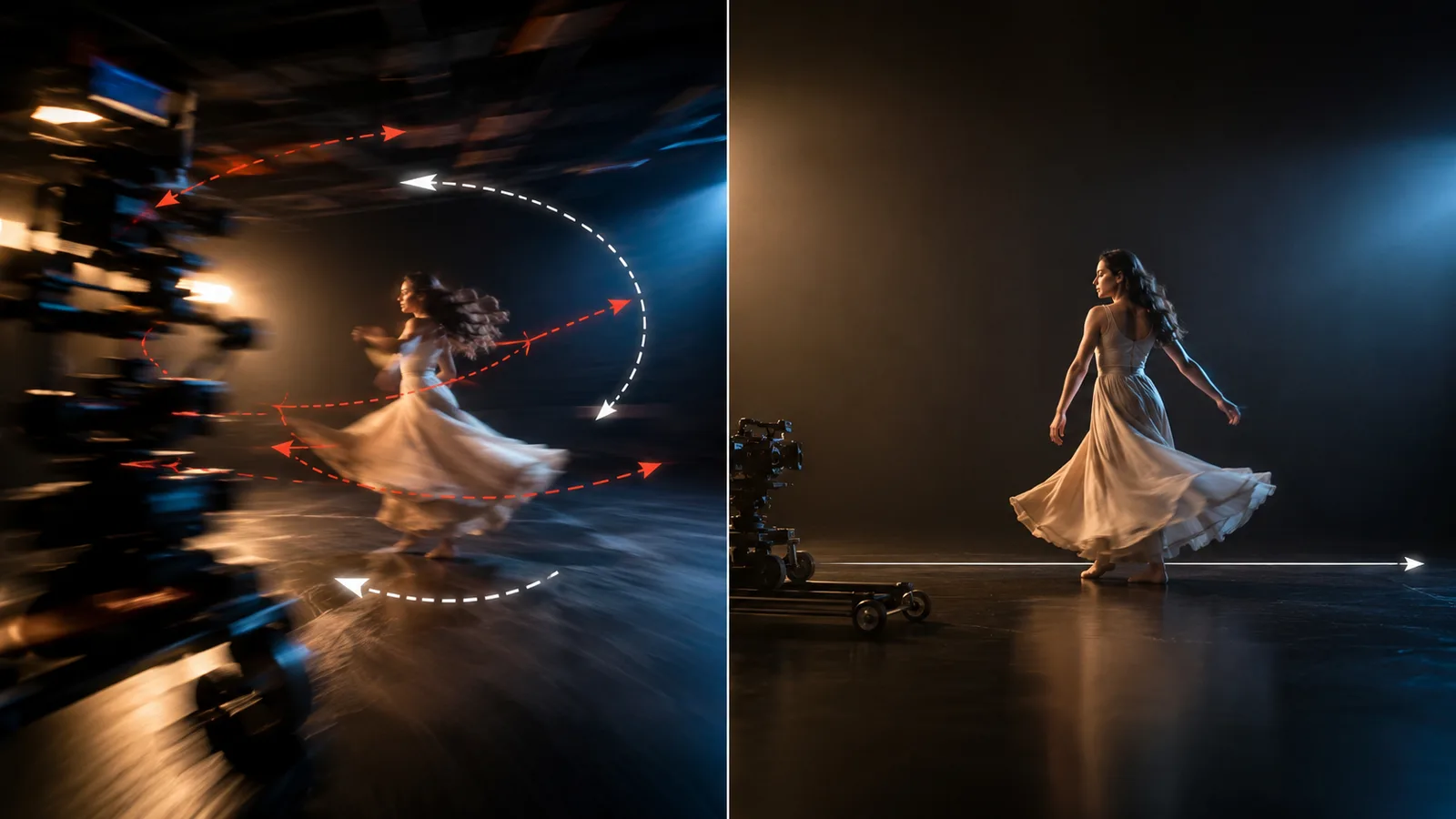
Subject motion and camera motion compete for model attention.
When both are loud, neither the action nor the frame stays clean.
Rewrite by isolating each job before you regenerate.
Before: The dancer spins while the camera zooms, pans, and follows her.
After: Camera slowly tracks right to keep the dancer centered. The dancer turns once with controlled arms.
The camera line owns direction and path.
The subject line owns only the body action.
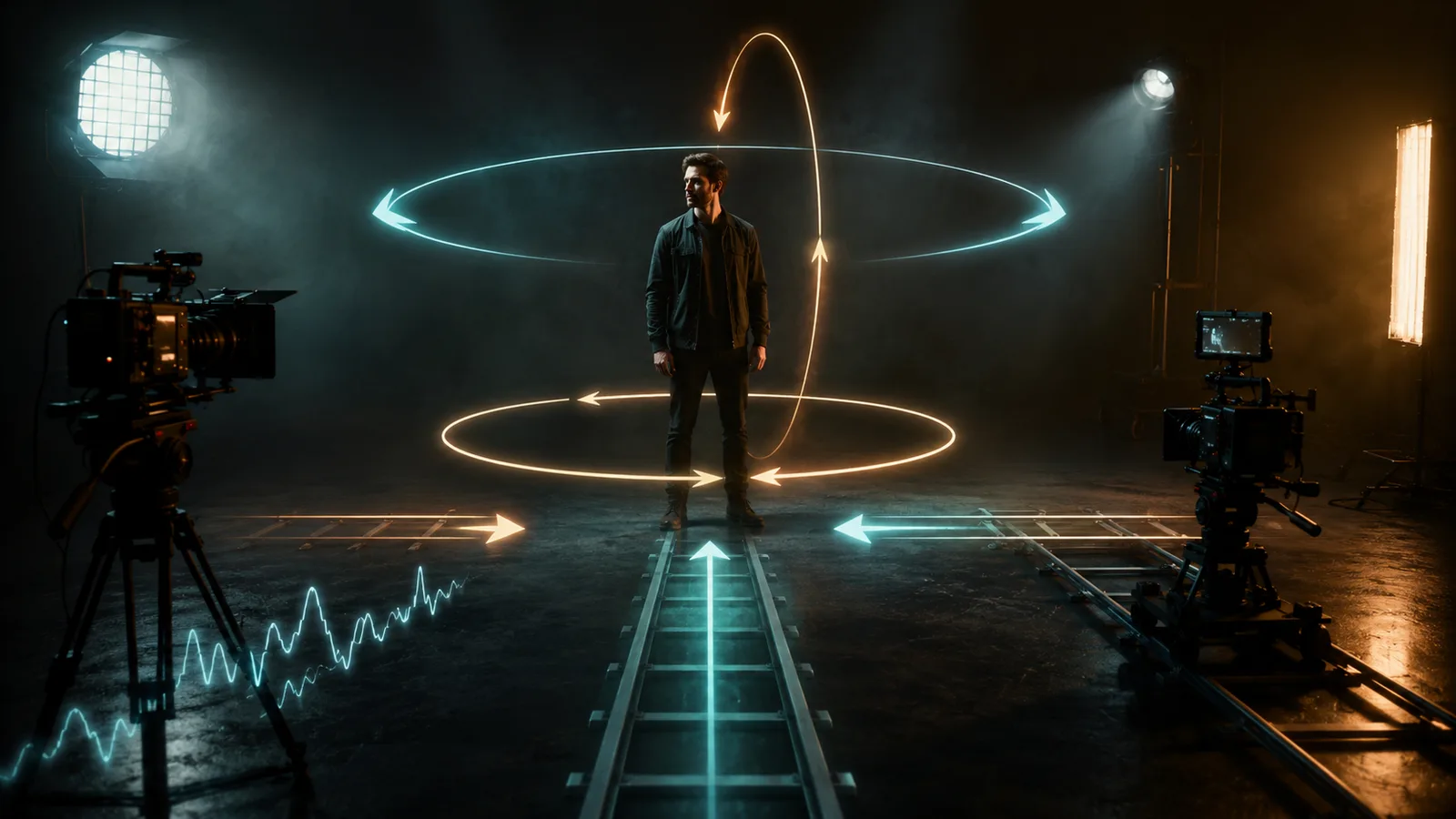
Cinematic Move Vocabulary for AI Video Camera Prompts
Plain cinematic terms give the model a clearer motion job than vague words like cinematic. Named moves such as pan, tilt, dolly, truck, zoom, orbit, static, and handheld tell the camera what path to take and what the viewer should feel.
Mood-only language leaves the path open. Strong AI video camera prompts name the move, then set tone with speed and quality modifiers.
Slow, smooth, and steady feel controlled. Aggressive or rapid raises energy on the same base move.
Use this matrix when you want cinematic AI video movement with a readable job for the frame.
| Move | Viewer effect |
|---|---|
| Pan | Reveals space or follows action from a fixed base |
| Tilt | Reads height, power, or vertical detail |
| Static | Lets subject action carry the shot |
| Handheld | Adds energy, urgency, or documentary texture |
| Dolly / push-in | Builds intimacy, intensity, or detail focus |
| Pull-out | Reveals context, ends a beat, or isolates the subject |
| Truck | Lateral travel with shifting background perspective |
| Orbit | Circles a hero for dimension and emphasis |
| Zoom | Tightens or widens framing without a physical path |
Pan, Tilt, Static, and Handheld
These moves keep the camera base simple and easy to read.
Pan rotates left or right from a fixed point. Try “slow pan right across the skyline” when you want a reveal without relocating the body.
Tilt rotates up or down from the same fixed base. “Steady tilt up from shoes to face” is a clean vertical read.
Static locks the frame on purpose. Use it when subject action should carry the shot and extra path would compete.
Handheld adds controlled shake for urgency or documentary texture. Keep it mild unless chaos is the goal.
Dolly, Truck, Orbit, Push-In, and Pull-Out
These are body moves that change depth or lateral perspective more strongly than a pure rotate.
Dolly language moves the camera toward or away from the subject. A push-in builds intimacy. A pull-out reveals environment or ends a beat.
Truck moves the camera left or right on a parallel path. Background perspective shifts more than with a pan, so lateral travel feels physical.
Orbit arcs or circles the subject. It works for hero emphasis on a product, character, or set piece when one clear circle is enough.
Zoom Versus Push-In: A Practical Trade-Off
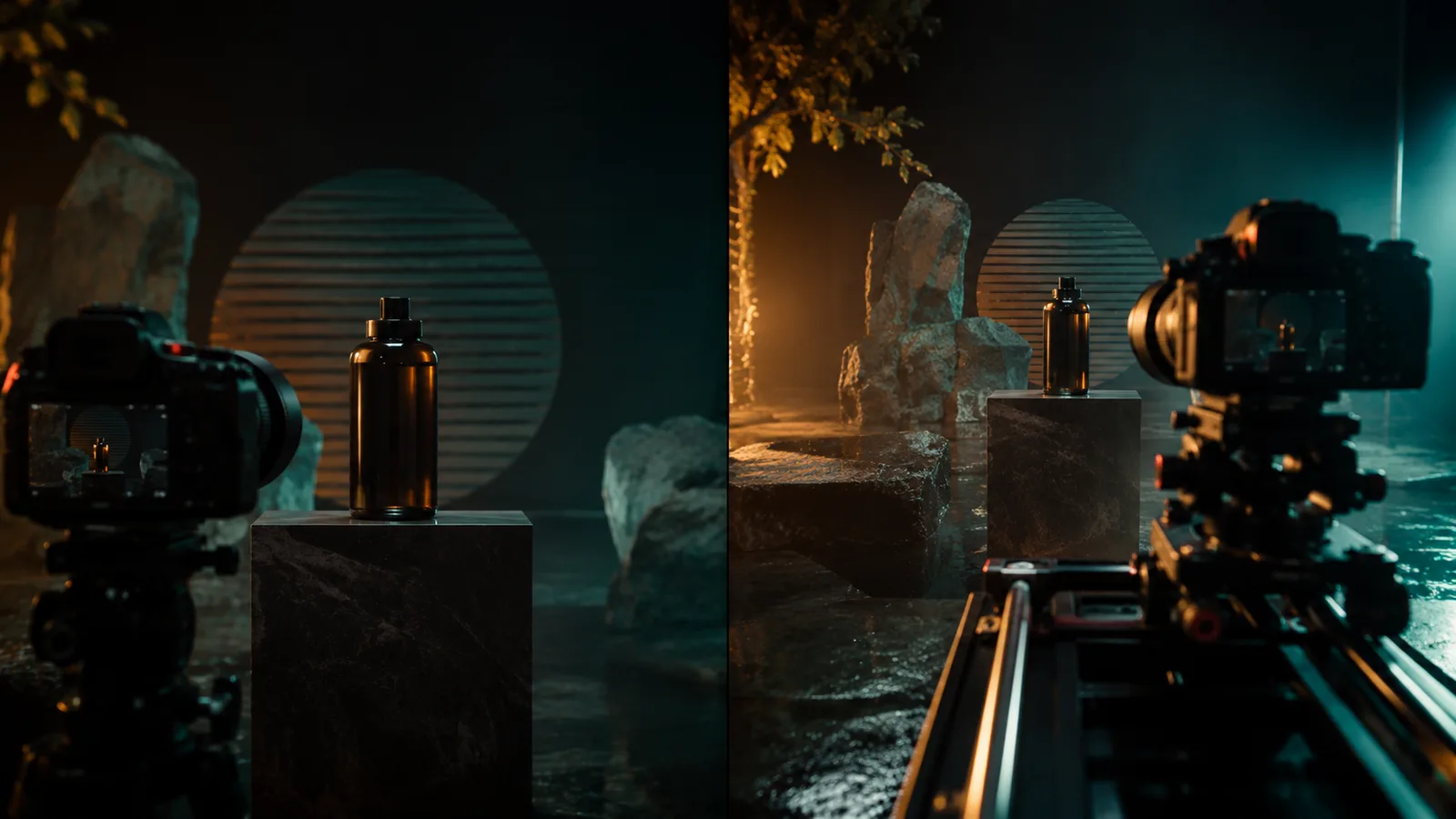
AI video pan and zoom language often looks similar on paper, but the depth cue is different.
Zoom tightens or widens framing in a lens-style way. Push-in implies the camera body approaches, which usually sells stronger depth change.
The practical result: a slow zoom is often safer than aggressive multi-axis motion when you need a clean focus pull without a messy path.
Choose push-in when intimacy and parallax matter more than simple scale.
Watch this Shawn Dolinski breakdown of dolly in versus zoom.
Those chapters make the depth trade-off in this section obvious.
Specify Direction, Speed, Framing, and Subject Tracking
Control improves when you specify direction, speed, framing, subject tracking, and start/end composition as separate constraints. Each cue reduces guesswork. Pair one named move with modifiers like slow, smooth, steady, or aggressive so cinematic AI video movement stays intentional instead of default.
The model still needs how the camera travels, how fast it goes, what stays framed, and where the shot starts and ends.
Direction comes first.
Use left, right, up, down, in, out, or around in plain language.
"Slow pan left across the skyline" beats a vague "cinematic pan."
Speed and quality sit next to the move.
Slow, gradual, smooth, and steady feel controlled.
Aggressive or rapid adds energy without changing the path.
Reported prompt patterns show missing speed cues often leave a default medium pace.
Framing tells the model what must stay readable.
Name what stays centered, revealed, or tight.
"Keep the product centered" reduces subject drift better than hoping the model guesses focus.
Subject tracking needs light language, not a second full camera plan.
Use subject tracking camera, follow the subject, side tracking, or character-centered tracking.
Keep subject action mild when tracking is the main job.
Start and end composition close the loop.
State where the frame begins and where it finishes.
"Start wide on the street, end tight on the doorway" gives the path a clear destination.
That structure helps you control camera movement in AI video with cleaner priorities.
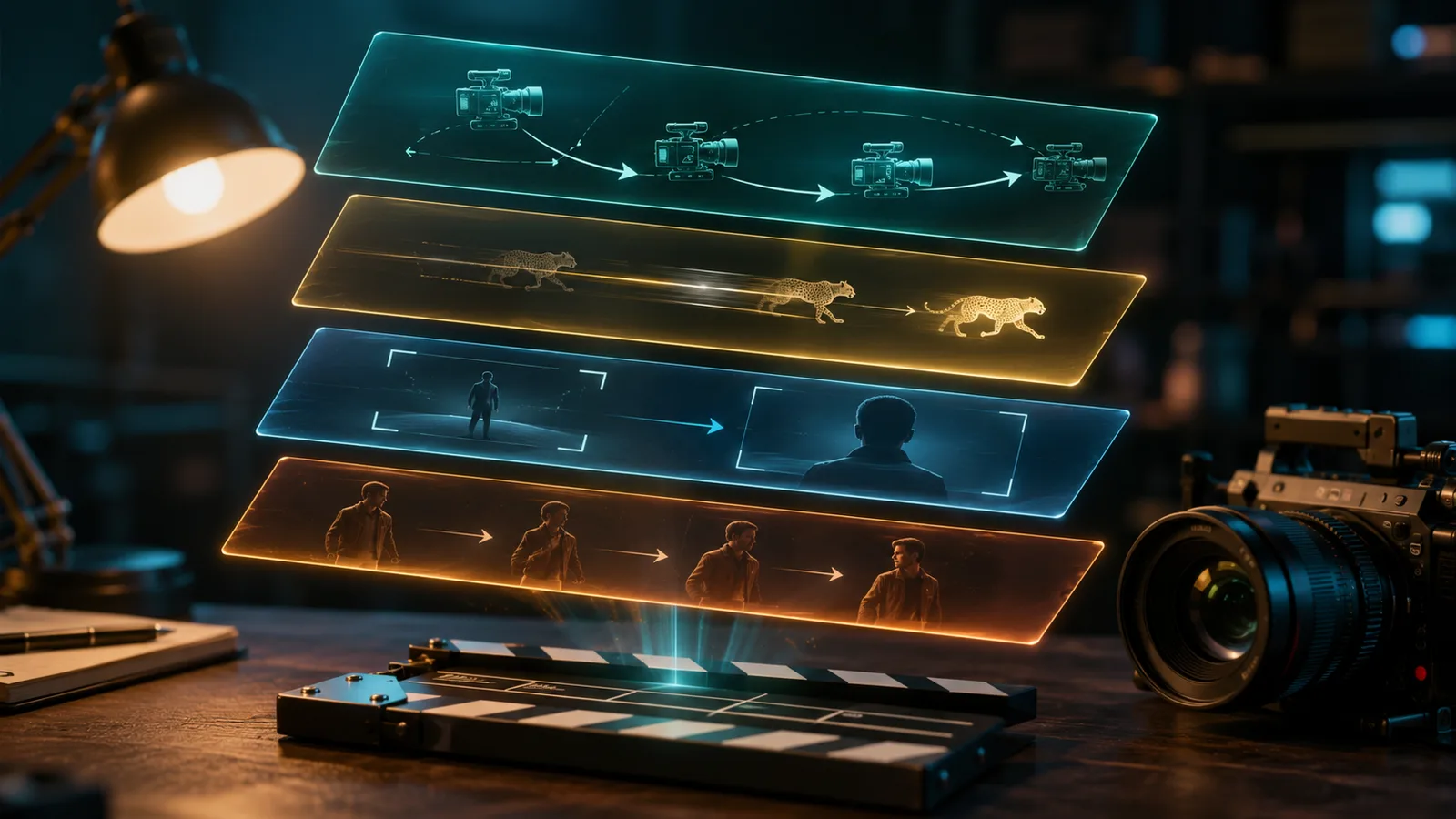
Camera Motion Prompt Guide: Anatomy and Templates
A reusable camera motion prompt guide starts with the camera move, then speed and quality, then framing or start/end composition, then subject action as a separate clause. That order keeps motion intentional and stops the model from inventing a path.
Treat the prompt like a shot brief, not a mood dump.
Lead with one named move.
Add speed and quality next so the model does not default to a medium, forgettable pace.
Then lock framing or the start and end composition.
Keep subject action in a separate clause so it cannot rewrite the camera path.
Use these five templates as starting points. Each keeps one primary camera action.
Static product push-in. Camera: slow smooth push-in, start wide, end tight on the product face. Subject: product stays still under soft studio light.
Landscape pan. Camera: slow steady pan left across the horizon, keep the skyline level. Subject: clouds drift lightly, no other action.
Tracking follow. Camera: subject tracking camera, smooth side follow, keep the runner centered. Subject: runner jogs forward at a steady pace.
Orbit hero. Camera: slow orbit around the subject, keep the hero centered, end on a three-quarter view. Subject: hero stands still, coat moves slightly in the wind.
Handheld energy. Camera: controlled handheld push-in, steady intensity, start medium, end close on the face. Subject: speaker turns slightly toward camera while speaking.
Do not stack a second equal move into these defaults.
If you need light support motion, mark it secondary or split it into a new clip.
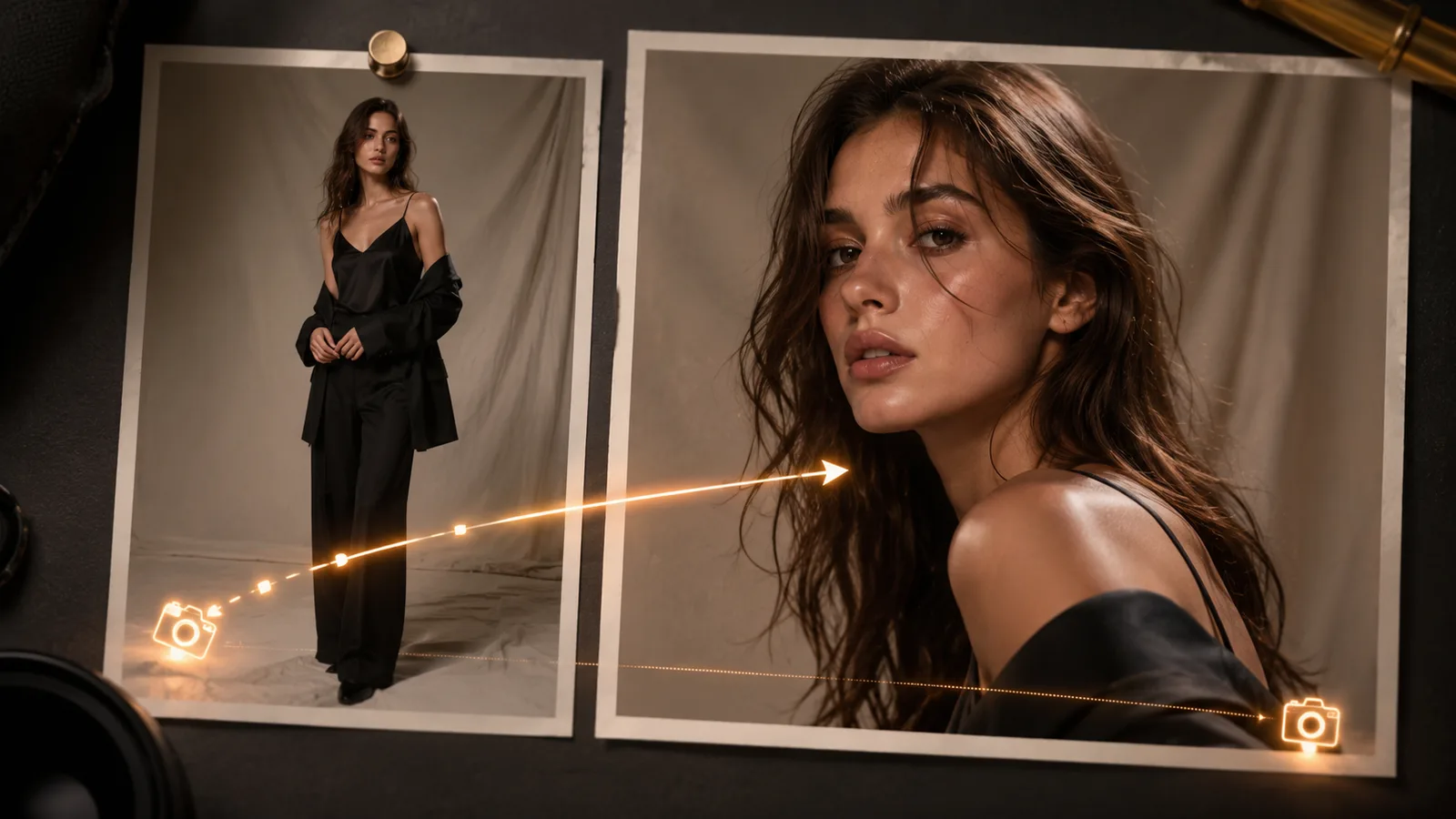
Image-to-Video Camera Control Techniques
Image-to-video camera control works best when the source image locks identity and base composition while the prompt owns motion. Focus text on camera path, speed, and framing intent. Keep subject action light so the start frame can stay stable through the move.
Text-led prompts build the whole scene from words. Image-to-video starts from a still, so the job split changes.
Use the still as the anchor. Let the motion line do the directing.
Some tools also offer reference-video paths or directional camera panels after upload. Treat those as optional helpers some products provide, not as a universal default.
Let the Image Anchor Identity and Framing
The start image should lock subject identity, wardrobe, and base framing.
Your prompt should own the camera path and intensity. Restating the full scene already visible in the image often adds noise.
Write motion-focused language: where the camera travels, how fast it moves, and what detail gets revealed.
That split keeps the model from rewriting the face, outfit, or opening composition mid-shot.
Constraints That Shape Image-to-Video Motion
Short generative clips leave little room to recover from a weak start frame.
If the first frame is soft, cropped wrong, or crowded, camera motion usually amplifies the problem.
Heavy subject action plus a strong camera move creates competition for model attention. Keep one clear camera action and mild subject motion when you need path clarity.
Plan the start frame as carefully as the prompt. A clean anchor plus one controlled path beats a busy still fighting a busy motion line.
A Short Workflow for the Next Clip
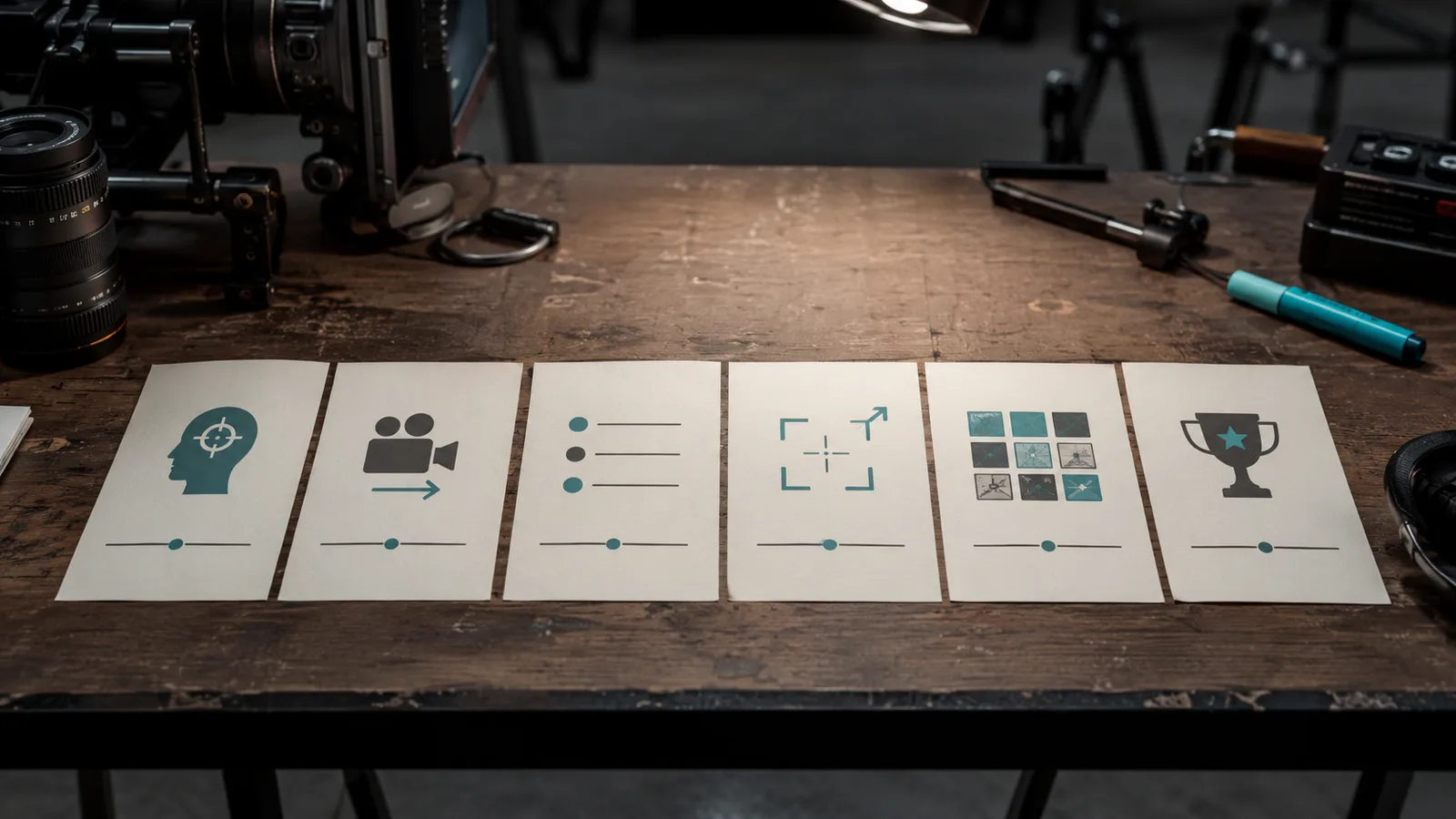
Use this short production checklist on your next clip: choose viewer intent, pick one camera action, separate camera and subject lines, add speed, framing, and tracking, then generate variants and keep the best take. The sequence keeps motion intentional without rebuilding the full prompt system.
You need a short order that keeps control camera movement in AI video practical under deadline pressure.
Choose viewer intent.Decide what the audience should feel or notice first.
Pick one camera action.Commit to a single primary path. Add a second move only if it supports the first without competing.
Separate camera and subject lines.Camera owns direction and path. Subject owns scene action, kept light enough not to rewrite the move.
Add speed, framing, and tracking.Pair slow, smooth, steady, or aggressive with the move. Name what stays centered or followed.
Generate variants.Reported production practice often re-rolls a near-miss before a full rewrite.
Keep the best take.Choose the clip with the clearest direction, pace, and subject readability.
Troubleshoot Failed Camera Motion and Plan Around Limits
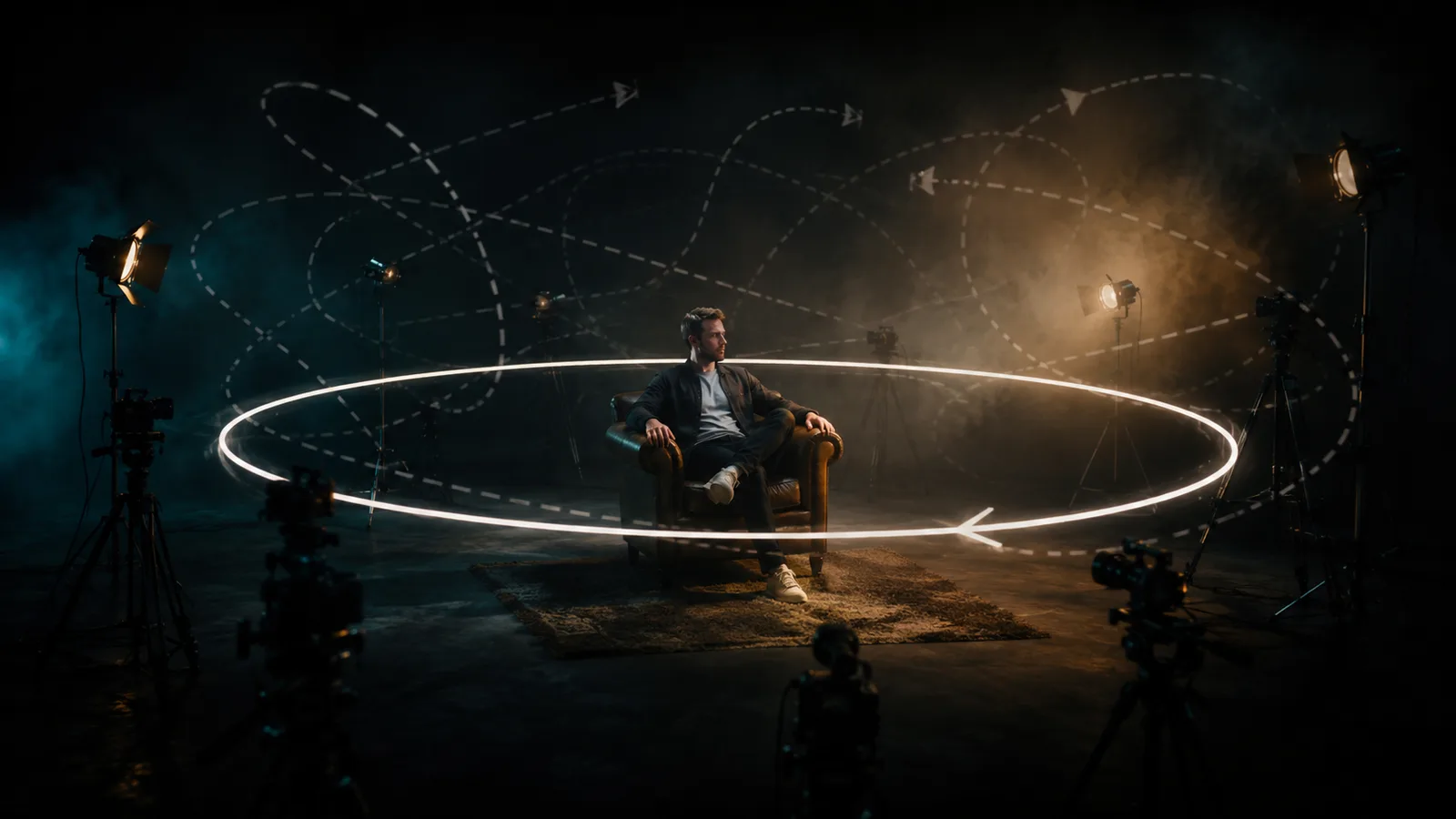
Most camera failures can be fixed by reducing competing motion, clarifying direction and speed, and re-centering subject tracking. Rewrite the prompt instead of adding more moves. Then plan around model variance, short clip budgets, and imperfect tracking so expectations stay realistic.
When a take fails, the problem is usually mixed intent, not a broken tool.
Look for motion that runs too fast, drifts off subject, flips direction mid-shot, or fights in-scene action.
The better move: strip competing motion first, then rewrite one constraint.
Rewrite Patterns for Common Failures
Name the failure, then change one instruction at a time.
Too fast: swap "cinematic zoom" for "slow smooth push-in, steady pace."
Subject drift: add "subject tracking camera, keep the subject centered."
Unexpected direction: lock one path such as "slow steady pan right, keep the horizon level."
Competing scene action: lighten subject motion while the camera carries the shot.
Before: camera orbits while the crowd runs and fireworks explode.
After: slow orbit around the hero, keep the hero centered; background motion stays light.
Limits That Still Shape Production
Cleaner language helps you control camera movement in AI video, but it does not erase every ceiling.
Model variance means the same prompt can land differently across tools and sessions.
Short generative clip budgets leave little room to recover after a weak first second.
Imperfect tracking still breaks on busy backgrounds, fast turns, or multi-person action.
Plan shorter shots, simpler paths, and variant selection from the start.
Frequently Asked Questions
Can I combine two camera movements in one AI video prompt?
Default to one primary camera action per short clip. A subtle secondary move can work only when it clearly supports the first path. Equal-weight stacks often confuse models and can collapse into static or messy motion.
Is image-to-video better than text-to-video for controlling camera movement?
Image-to-video camera control usually anchors subject identity and base framing better, so the prompt can focus on path, speed, and framing intent. Text-to-video must invent the whole scene and the camera job together, so control depends more on clean separation. Neither workflow guarantees perfect tracking.
Should I re-roll a bad camera take or rewrite the prompt first?
Re-roll when the intended move is already correct and the take is only a near miss. Rewrite when direction, speed, framing, tracking, or competing subject action is wrong. Change one constraint at a time before you add a second camera move.
Do camera control panels replace written AI video camera prompts?
No. Some tools offer directional panels or reference-video helpers after upload, but clear text still defines intent, pace, and what must stay centered. Treat UI controls as optional helpers, not a universal replacement for cinematic language.
Can the same camera prompt work across different AI video models?
Plain cinematic language such as pan, tilt, dolly, orbit, push-in, handheld, and static is transferable across tools. Results still vary by model and session, so expect to re-roll, soften speed, or simplify the path rather than assume identical output.
How much subject action is safe when the camera is moving?
Keep subject motion light when the camera owns the shot. One controlled body action is usually safer than busy multi-object action. If both feel loud, isolate jobs: write the camera path first, then add a mild subject clause.
Should AI video pan and zoom be used together in one clip?
Not by default. Pan and zoom are different jobs, and stacking them raises competition risk on short clips. Prefer one clear path, or use a slow single move with clear framing, and split into a second clip if both reveals matter.
How do I keep a product or face centered during a push-in?
Name the framing job explicitly: keep the product or face centered, start wide or medium, end tight on the key detail, and use slow smooth speed. Avoid heavy background action that pulls attention off the anchor. That keeps cinematic AI video movement readable from start to end.