●13 min read
PixVerse C1 Review: How the Model Works and How It Compares to V6
PixVerse now offers two strong video models, and the better pick depends on the job. C1 is built for production control: storyboard-driven shots, action and VFX focus, multi-shot consistency, and reference workflows. V6 remains the flexible generalist, including video extension support that C1 does not offer. This review breaks down how C1 works, where it wins, and when V6 is still the smarter choice.
Two models without a job map.
That is the new production friction.
Here's why: Creators now face a specialist line and a flexible generalist at once.
There is no clear rule for which brief gets which model.
Wrong model picks waste credits and break multi-shot continuity on real briefs.
The specialist thrives on cinematic multi-shot control.
The generalist thrives on fast everyday social and product clips.
The catch:
Guessing either way still forces another full re-brief, slower approvals, and lost production time.
This PixVerse C1 Review maps how PixVerse C1 works as a production specialist, then compares it job by job with PixVerse V6.
You get a verified capability map, the hard constraints that actually matter, plus choose-by-job fit rules without crowning a universal winner.
The practical result:
The choice should feel less like a model debate.
It becomes a workflow decision for action boards, continuity jobs, storyboard packages, and fast social iteration.
Why PixVerse Built C1 Alongside V6
PixVerse C1 is a separate film-production specialist line, not a replacement for the flagship general model. PixVerse V6 remains the flexible general-purpose cinematic option. Creators should pick by job type rather than by which model launched later.
PixVerse did not ship one model to retire the other.
On March 30, 2026, V6 launched as the flagship general cinematic model.
On April 7, 2026, PixVerse C1 arrived as a purpose-built film-production line.
That second release added an industrial-grade action engine, a cinematic VFX system, and multi-panel storyboarding for complex multi-shot sequences.
The practical result:
C1 is a specialist PixVerse AI video model for production control, while V6 stays the everyday generalist.
Source-reported role guidance is clear on the split.
C1 is framed for fight scenes, fantasy effects, transformation shots, reference-guided continuity, and storyboard packaging.
V6 is framed for broad creative tasks, marketing videos, simple prompts, and fast social content.
That means “newer” is not the decision rule.
Job type is.
If the brief needs production-lane control, test C1.
If the brief needs fast general generation, keep V6 as the default path.
Both models still exist because they serve different production lanes, not because one quietly replaced the other.
PixVerse C1 Review Anchors: Storyboard Input, Action Engine, and Output Limits
This PixVerse C1 Review centers on a production stack built for multi-panel storyboard-to-video, action and VFX work, reference consistency, and optional synchronized audio. Clips run any integer from 1 to 15 seconds at up to 1080p.
These are the capability anchors creators need before any job-by-job comparison.
Multi-panel storyboard-to-video input
This Blue Lightning AI Daily walkthrough is useful here because it shows PixVerse C1 turning multi-panel storyboard input into a continuous multi-shot sequence.
Watch for how character identity and wardrobe hold across panels, and pay attention to where transitions still show seams.
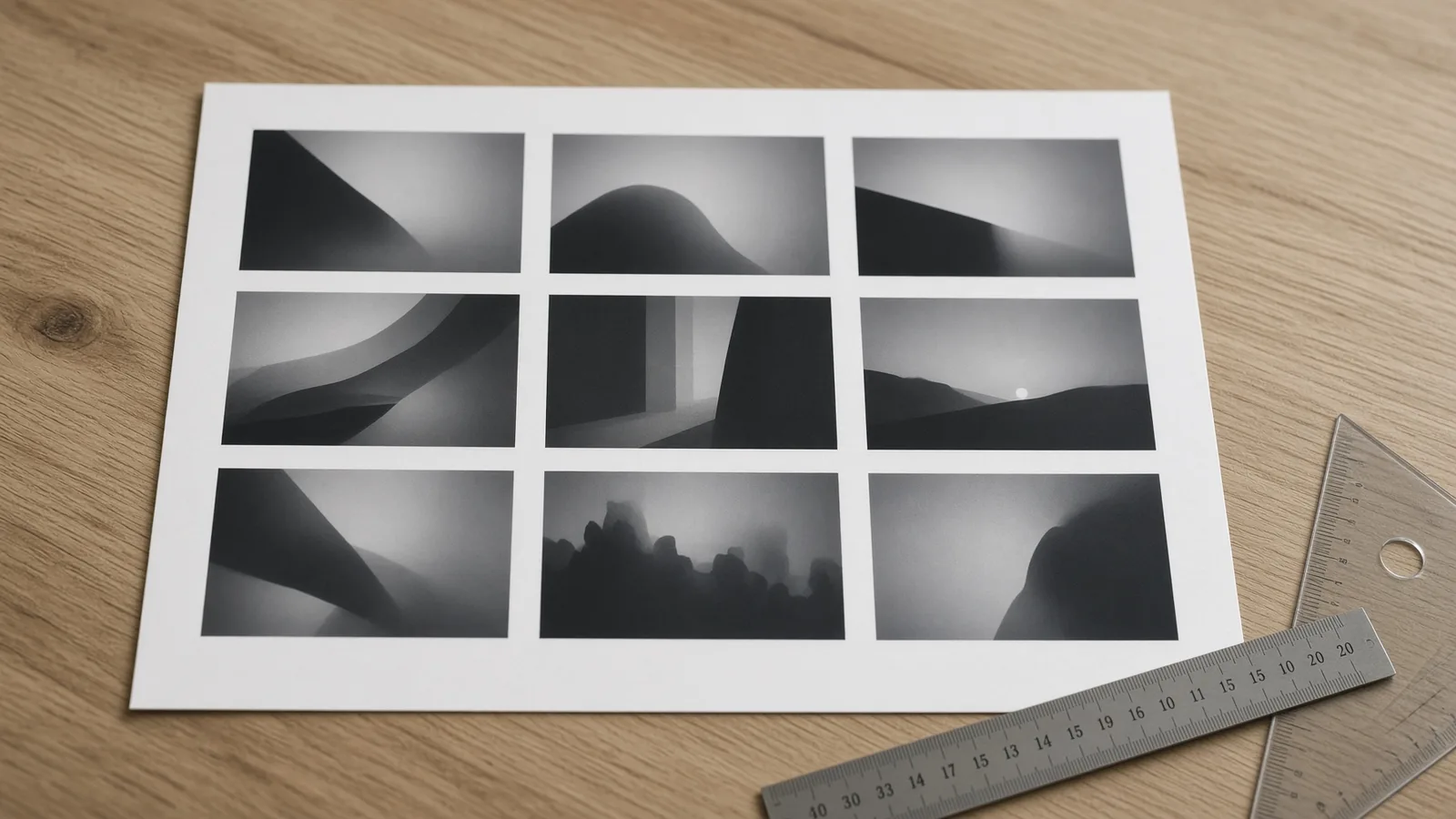
The distinctive production input is a 3–9 panel storyboard grid.
PixVerse C1 turns those static panels into a continuous multi-shot sequence with automatic shot segmentation.
Source-reported framing says the grid helps preserve character identity and spatial logic across cuts.
That is the core storyboard-to-video mechanic, not a decorative prompt option.
Action physics, VFX, and transformation focus
C1 is production-intent first: action contact, particles, elemental effects, and high-speed transformations.
Source-reported review scores put action and contact near the top of its stack, with VFX and particles close behind.
The catch: fast ground movement can still show occasional foot sliding.
Dense choreography prompts may also need simplification before the action engine holds clean contact.
Reference Fusion and supported generation modes
Supported modes cover text-to-video, image-to-video, first/last-frame transition, and Fusion reference-to-video.
Fusion is the multi-reference path for subjects, props, and environments.
Source-reported guidance lists up to seven tagged subject or background references for scene composition.
An optional generate_audio_switch can add synchronized audio on the listed modes.
Duration, resolution, aspect, and audio limits
Duration accepts any integer from 1 to 15 seconds, including at 1080p.
Resolutions include 360, 540, 720, and 1080.
Aspect ratios cover eight options, including 21:9, for text-to-video and Fusion workflows.
Optional synchronized audio is available, but source-reported cost notes flag 1080p-plus-audio as expensive for bulk iteration.
PixVerse C1 vs V6: Job-by-Job Production Fit
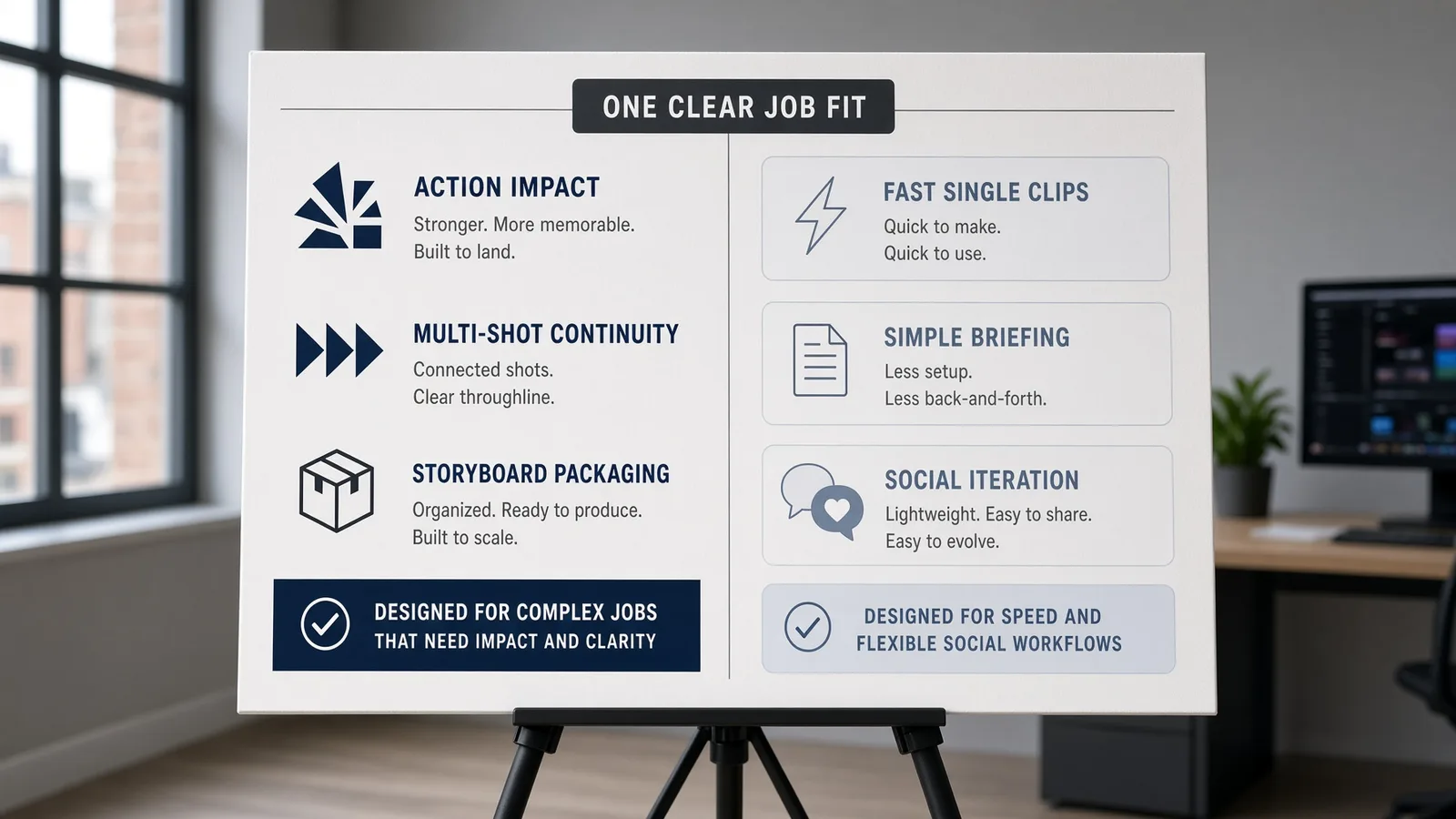
PixVerse C1 vs V6 is a job-fit decision, not a universal ranking. C1 tends to fit action, VFX, storyboard, and multi-shot continuity work. V6 remains the stronger default for general text/image-to-video, fast social iteration, and broader everyday creative tasks.
Use the matrix first, then decide by brief pressure.
| Job | C1 fit | V6 fit | Practical note |
|---|---|---|---|
| Cinematic action | Strong | Capable | Prefer C1 for contact-heavy fights and impact beats |
| Character continuity | Strong across shots | Solid in single shots | C1 helps when one subject must hold through cuts |
| Storyboard-to-video | Native multi-panel path | Manual per-shot pattern | C1 auto-segments a 3–9 panel grid into shots |
| General text/image-to-video | Usable, heavier setup | Strong default | V6 is faster to brief for simple clips |
| Reference control | Production-focused multi-shot | Broad everyday control | Use C1 when references must steer sequence identity |
| Multi-clip creation | Strong for series continuity | Strong for punchy singles | Source-reported tests lean C1 for recurring characters |
Watch this Click AI side-by-side test if you want same-prompt evidence behind the job matrix above.
The clip runs C1 and V6 through action and physics, character close-ups, multi-shot storytelling, fluid motion, and night lighting, so you can see where each model actually wins.
Use those results to pressure-check the C1-versus-V6 fit notes in the subsections that follow.
Video Extension is a separate hard constraint, covered next, not a row in this matrix.
Cinematic action and VFX jobs
Source-reported reviews frame PixVerse C1 as a cinematic AI video generator with strong action contact and particle VFX behavior.
Fight scenes, fantasy effects, and transformation shots often land cleaner on that path.
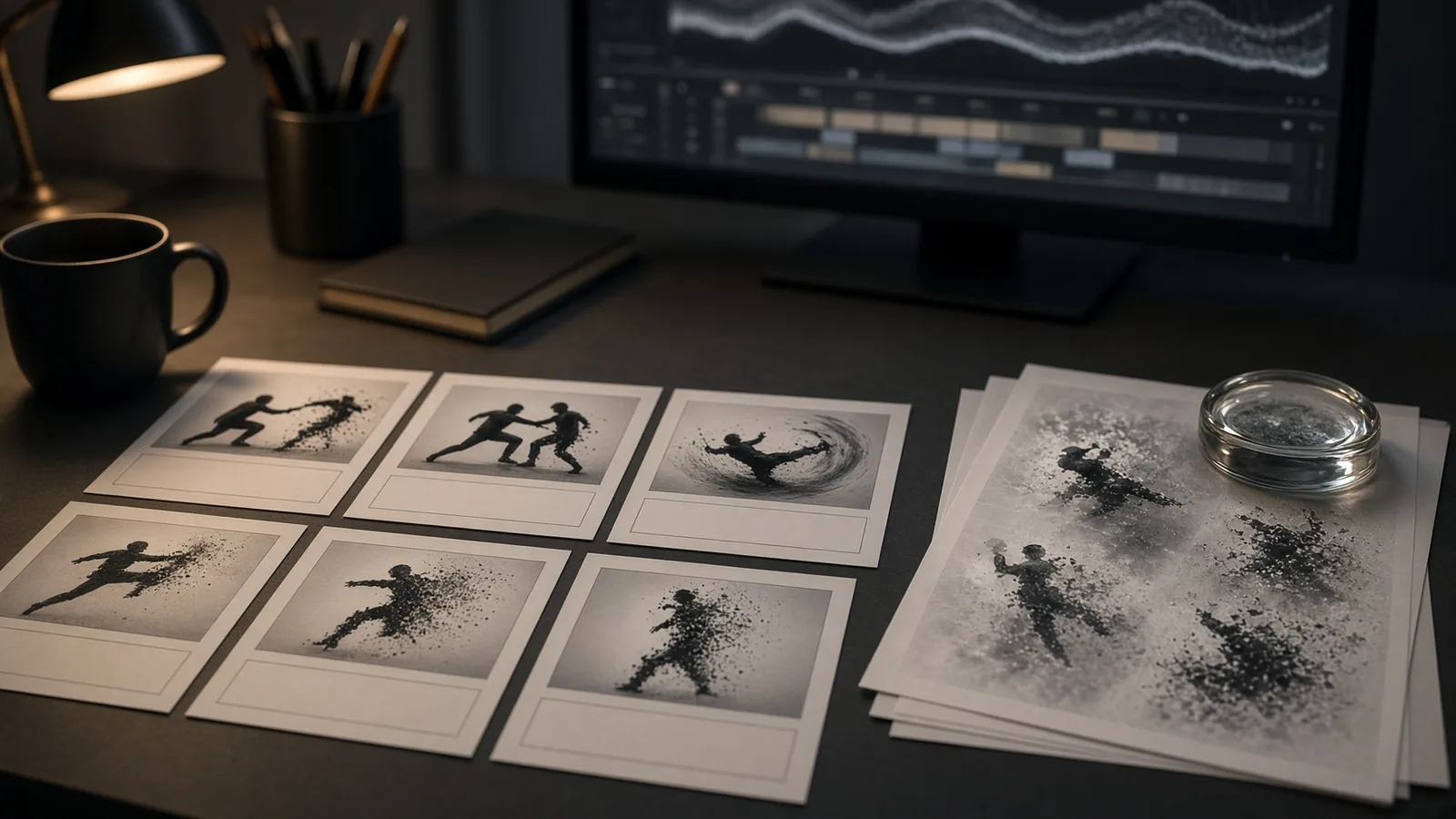
The catch: fast ground movement can still produce foot sliding.
Dense choreography prompts usually need simplification before generation, or contact timing drifts.
Continuity, storyboard, and multi-clip storytelling
Multi-shot consistency is the clearest production differentiator in the PixVerse C1 vs V6 split.
C1 accepts multi-panel storyboard input and uses automatic shot segmentation, as source-reported.
V6 leans toward manual per-shot generation for multi-scene work.
That means storyboard-to-video packaging and recurring-character multi-clip storytelling favor C1’s native path.
Do not treat that as a cross-clip guarantee.
Source-reported same-prompt creator tests also lean C1 when building series with recurring characters, and V6 when the goal is a punchy first-second social hit.
General text/image-to-video and fast briefing jobs
V6 is usually faster to brief for social, product, and simple marketing clips.
Simple prompts and quick iteration matter more than multi-panel control here.
The better move: keep everyday text/image-to-video on V6 unless continuity pressure forces a specialist pass.
Video Extension Support: Where V6 Wins by Default
PixVerse C1 does not support Video Extension, while PixVerse V6 does. Any workflow that must continue existing footage should default to V6 unless a full re-generation path is acceptable. Multi-shot storyboard inside one generation is not a substitute for extending finished clips.
Treat the support split as a hard production gate, not a minor checkbox.
Source-reported capability matrices list Video Extension as unsupported on PixVerse C1.
PixVerse V6 includes video-extend workflows that continue source footage for 1–15 seconds.
That means a finished master you need to lengthen belongs on V6 by default.
C1 multi-shot packaging can still win the first generation, but it does not close the extension gap by itself.
Do not assume platform-level chaining will fix that model-matrix hole unless the path is verified for your stack.
When you also need finer frame and camera flexibility on the V6 side, compare notes in Kling 3.0 vs PixVerse V6: Better Frame Control?.
Reference Control and Multi-Shot Consistency Trade-Offs
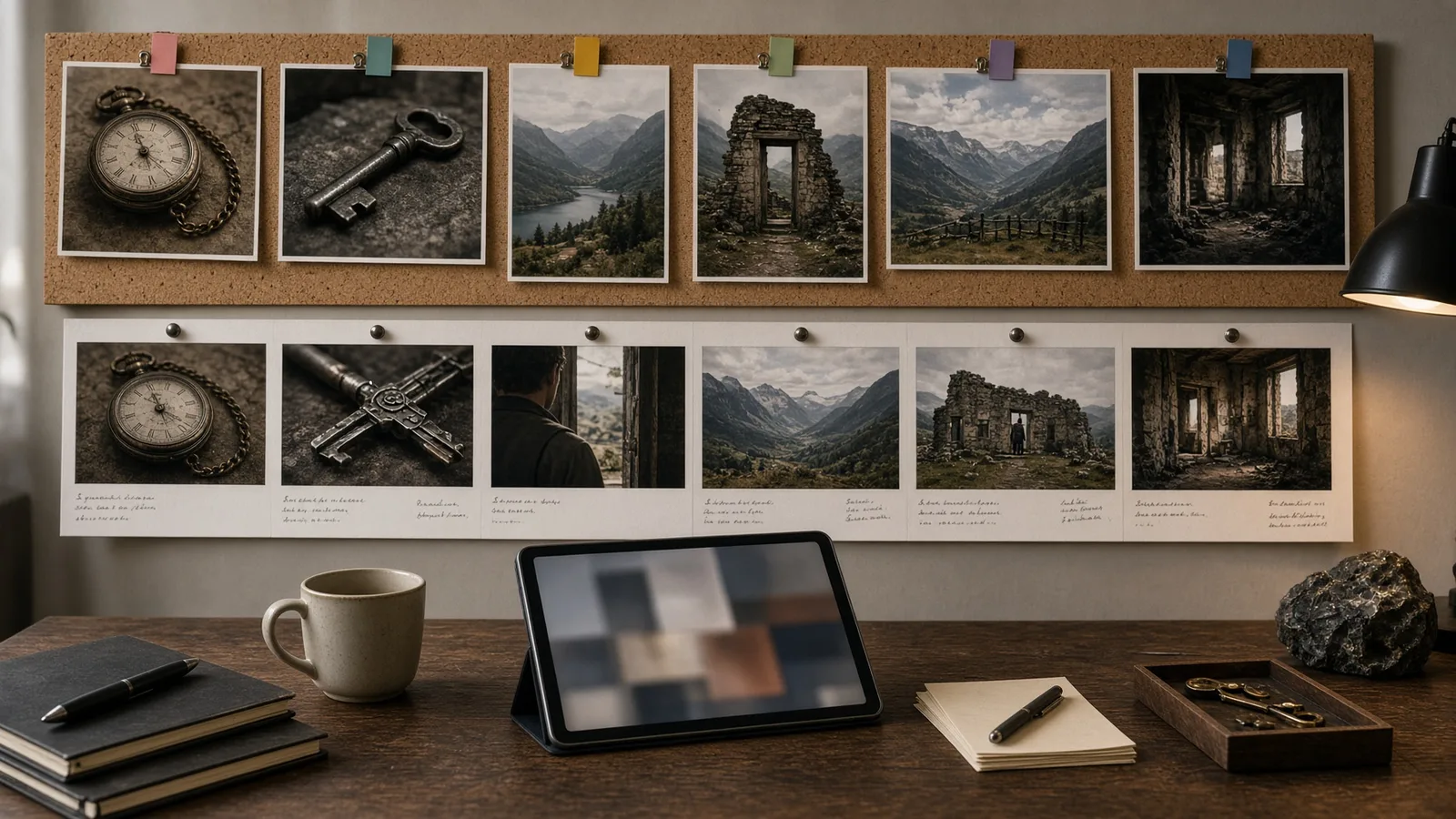
C1 reference and multi-shot tools improve cross-shot identity for production sequences, but similar storyboard panels, overloaded prompts, and fast ground motion can still break multi-shot consistency. Treat those controls as strong production aids with clear failure modes, not absolute continuity locks.
Reference quality decides whether multi-shot consistency holds across a production sequence.
Source-reported workflows support up to seven tagged subject and background images for guidance.
Fusion blends multiple references for characters, props, and environments in one composition.
A single still works better when you only need identity-stable animation from one clear visual anchor.
The catch: those same production controls still fail under specific conditions.
Similar storyboard panels can confuse automatic shot segmentation because adjacent beats look too alike.
Make each panel read as a distinct camera beat before you submit the grid.
Dense fight choreography often needs simplification before generation, or contact physics drifts.
Fast ground movement remains a known physics caveat, with occasional foot sliding reported in source reviews.
Packing camera intent, subject motion, and reference roles into one dense prompt blurs the control signals.
Source-reported review scores treat action contact and storyboard workflow as relative strengths.
Cost control sits lower because 1080p with audio gets expensive for bulk iteration.
The better move: run lower-res drafts first, then lock one high-res final pass.
As a cinematic AI video generator path for multi-shot work, C1 still needs clear panel contrast and clean reference roles.
Which Should You Use? A Practical Decision Matrix
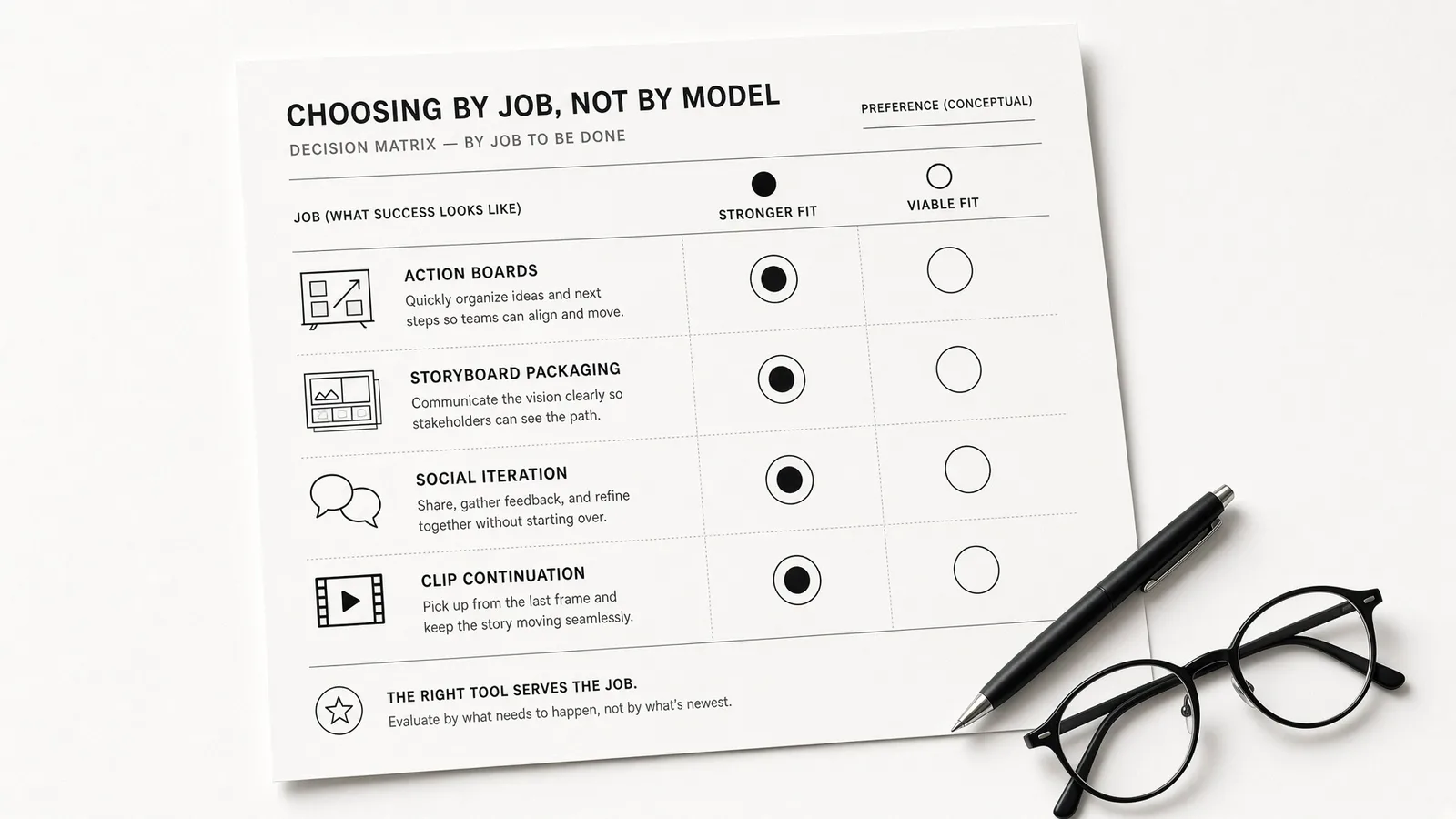
Pick by job, not by which model feels newer. Choose PixVerse C1 for storyboard-driven cinematic action, reference-heavy continuity, and multi-shot packaging. Choose PixVerse V6 for flexible general generation, fast social iteration, and any pipeline that needs Video Extension.
Neither model is universally better.
Use the matrix by job type, hard constraint, and how often you need to iterate.
| If your job is | Prefer | Because | Watch-out |
|---|---|---|---|
| Fight or action choreography | PixVerse C1 | Stronger action and contact handling as source-reported | Simplify dense fight beats before generation |
| Fantasy VFX and transformations | PixVerse C1 | Built for particles, elemental effects, and high-speed transforms | Keep effect prompts focused, not overloaded |
| Storyboard-to-video packaging | PixVerse C1 | Native multi-panel input with automatic shot segmentation | Make panels visually distinct to protect shot cuts |
| Recurring-character multi-clip continuity | PixVerse C1 | Stronger reference and multi-shot continuity path | Reuse clear identity anchors across clips |
| Simple product or talking-head social clips | PixVerse V6 | Faster to brief for everyday social and product work | Do not force C1 specialist setup here |
| Prompt-light marketing iteration | PixVerse V6 | Easier general text and image-to-video loops | Reserve C1 for control-heavy boards |
| Continue an existing clip | PixVerse V6 | Video Extension support is on V6, not C1 | Do not assume C1 can extend finished masters |
For mixed productions, split by stage instead of forcing one model end to end.
Generate hero multi-shot boards and action plates on PixVerse C1.
Handle extend passes, social cutdowns, and fast iterate loops on PixVerse V6.
That keeps each model in its lane without inventing unsupported automation between them.
The practical result: choose the specialist when continuity and storyboard control matter most.
Choose the generalist when speed, simple briefing, or clip continuation decides the pipeline.
Frequently asked questions
Is PixVerse C1 a replacement for V6?
No. C1 is a specialist film-production line for action, VFX, storyboard packaging, and multi-shot continuity.
PixVerse V6 remains the flexible general-purpose model for social, marketing, and everyday creative jobs.
Choose by job type, not by which model feels newer.
Does C1 support Video Extension?
No. Source-reported capability matrices list Video Extension as unsupported on C1.
If you must continue existing footage, default to PixVerse V6 unless a full re-generation path is acceptable.
When is storyboard-to-video worth the extra setup?
When you already have shot intent and need cross-shot identity control from a multi-panel grid.
Simple product clips, talking-head posts, and prompt-light social drafts rarely need 3 to 9 panels.
Use the extra setup when continuity risk is high and automatic shot segmentation saves more time than it costs.
Can both models output up to 15s at 1080p with audio?
Yes. Both are source-reported to support any integer duration from 1 to 15 seconds, up to 1080p, with optional synchronized audio where the generation mode supports it.
Duration and resolution parity is not the main decision factor.
Production control and extension support matter more.
How should mixed action-plus-extension projects split model choice?
Generate hero multi-shot boards and action sequences on PixVerse C1, then handle extend or iterate passes on PixVerse V6.
Treat extension as a hard gate: any clip that must continue finished footage belongs on V6.
Do not assume platform chaining fills C1’s extension gap.